WordPress Troubleshooting Guide: 7 Powerful Fixes
By David G., WP Support Lab
WordPress is a powerful platform, but it can sometimes present challenges that frustrate users. This guide aims to equip site owners with effective solutions to common WordPress issues, ensuring a smoother experience. By understanding the typical problems and their fixes, site owners can maintain their website’s performance and reliability. In this article, WP Support Lab explores seven powerful fixes for WordPress troubleshooting, including the notorious White Screen of Death, plugin conflicts, database connection errors, and site loading issues. Each section provides actionable steps to diagnose and resolve these issues effectively.
Diagnosing WordPress Errors: Where to Look First
Effective troubleshooting begins with knowing where to find error information. WordPress provides several tools and locations to diagnose issues quickly and accurately.
Error Logs Location
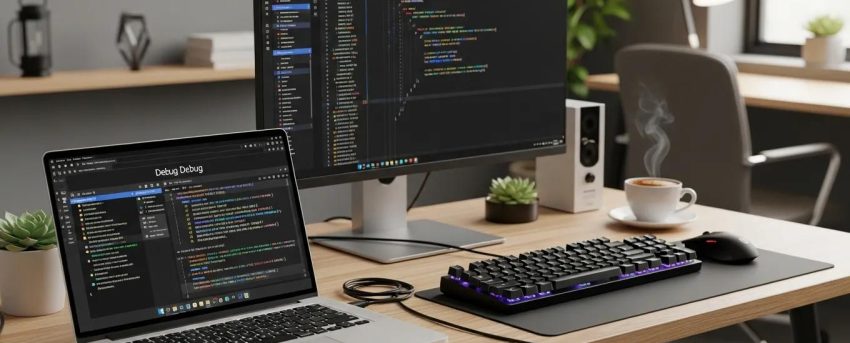
WordPress stores debug information in the file when debugging is enabled. This log captures PHP errors, warnings, and notices that can pinpoint the source of problems.
Enabling WP_DEBUG
To activate debugging, add the following lines to the file:
This configuration logs errors to without displaying them on the live site, preserving user experience while allowing developers to review issues.
Reading PHP Error Messages
PHP error messages often include file paths, line numbers, and error types. Understanding these details helps identify whether the issue stems from themes, plugins, or core files.
Checking Server Error Logs
In addition to WordPress logs, server error logs maintained by the hosting provider can reveal issues such as server misconfigurations, permission errors, or resource limitations. Access to these logs is typically available via the hosting control panel or through support requests.
The WordPress White Screen of Death: Causes and Fixes
The White Screen of Death (WSOD) is a frustrating issue where the website displays a blank white page, preventing access to content or the admin dashboard.
Common Causes
- Memory Limit Exhaustion: When WordPress exceeds the PHP memory limit, it cannot process requests, resulting in a white screen.
- Plugin or Theme Conflicts: Incompatible or poorly coded plugins and themes can cause fatal errors leading to WSOD.
- Corrupted .htaccess File: Misconfigurations or corruption in the .htaccess file can disrupt site loading.
Step-by-Step Recovery Process
- Enable Debugging: Activate WP_DEBUG as described above to reveal error messages.
- Increase Memory Limit: Add define(‘WP_MEMORY_LIMIT’, ‘256M’); to wp-config.php to allocate more memory.
- Deactivate Plugins: Rename the plugins folder via FTP or hosting file manager to disable all plugins.
- Switch to Default Theme: Rename the active theme folder to force WordPress to revert to a default theme like Twenty Twenty-One.
- Check and Reset .htaccess: Rename the existing .htaccess file and generate a new one by saving permalinks in the WordPress dashboard.
- Restore from Backup: If issues persist, restore the site from a recent backup.
Following these steps systematically can resolve most WSOD occurrences and restore site functionality.
Fixing WordPress Database Connection Errors
Database connection errors prevent WordPress from communicating with its database, resulting in messages like “Error establishing a database connection.”
Checking wp-config.php Credentials
Verify that the database name, username, password, and host in are accurate. Even minor typos can cause connection failures.
Repairing the Database via phpMyAdmin
Access phpMyAdmin through the hosting control panel and select the WordPress database. Use the “Repair” function on all tables to fix corruption issues.
Contacting Hosting Support
If connection errors persist after verifying credentials and repairing the database, contact the hosting provider. Server outages, configuration changes, or resource limits may require professional intervention.
Plugin and Theme Conflict Resolution: A Systematic Approach
Conflicts between plugins or between plugins and themes can cause errors, slow performance, or site crashes.
Deactivation Method
Deactivate all plugins simultaneously by renaming the folder. Then, reactivate plugins one at a time, checking the site after each activation to identify the problematic plugin.
Switching to Default Theme
Temporarily switch to a default WordPress theme such as Twenty Twenty-One to determine if the active theme is causing conflicts.
Identifying the Culprit Plugin
Once the conflicting plugin is identified, consider updating it, replacing it with an alternative, or consulting the plugin developer for support.
How Do You Fix the WordPress White Screen of Death?
The White Screen of Death (WSOD) is a common issue that leaves users staring at a blank screen instead of their website. This problem often arises due to memory limits, plugin conflicts, or syntax errors in the code. Understanding the underlying causes is crucial for effective troubleshooting. By diagnosing the issue correctly, site owners can restore their site quickly and minimize downtime.
What Causes the White Screen and How to Diagnose It
Several factors can lead to the White Screen of Death. Common causes include:
- Memory Limits: When a site exceeds the allocated memory limit, it can result in a WSOD.
- Plugin Conflicts: Incompatible plugins can interfere with each other, causing the site to crash.
- Syntax Errors: Mistakes in the code, such as missing semicolons or brackets, can lead to fatal errors.
To diagnose the issue, start by enabling debugging in the wp-config.php file. This will help identify the specific error causing the WSOD.
Step-by-Step Solutions to Restore Your Site Quickly
To resolve the White Screen of Death, follow these steps:
- Enable Debugging: Add define(‘WP_DEBUG’, true); to the wp-config.php file to display errors.
- Backup Your Site: Always create a backup before making changes to the site.
- Check for Plugin Conflicts: Deactivate all plugins and reactivate them one by one to identify the culprit.
- Increase Memory Limit: Edit the wp-config.php file to increase the memory limit by adding define(‘WP_MEMORY_LIMIT’, ‘256M’);.
- Review Code for Errors: If the theme or plugins were recently edited, check for syntax errors.
By following these steps, site owners can effectively troubleshoot and fix the White Screen of Death.
How Can You Resolve WordPress Plugin Conflicts Effectively?
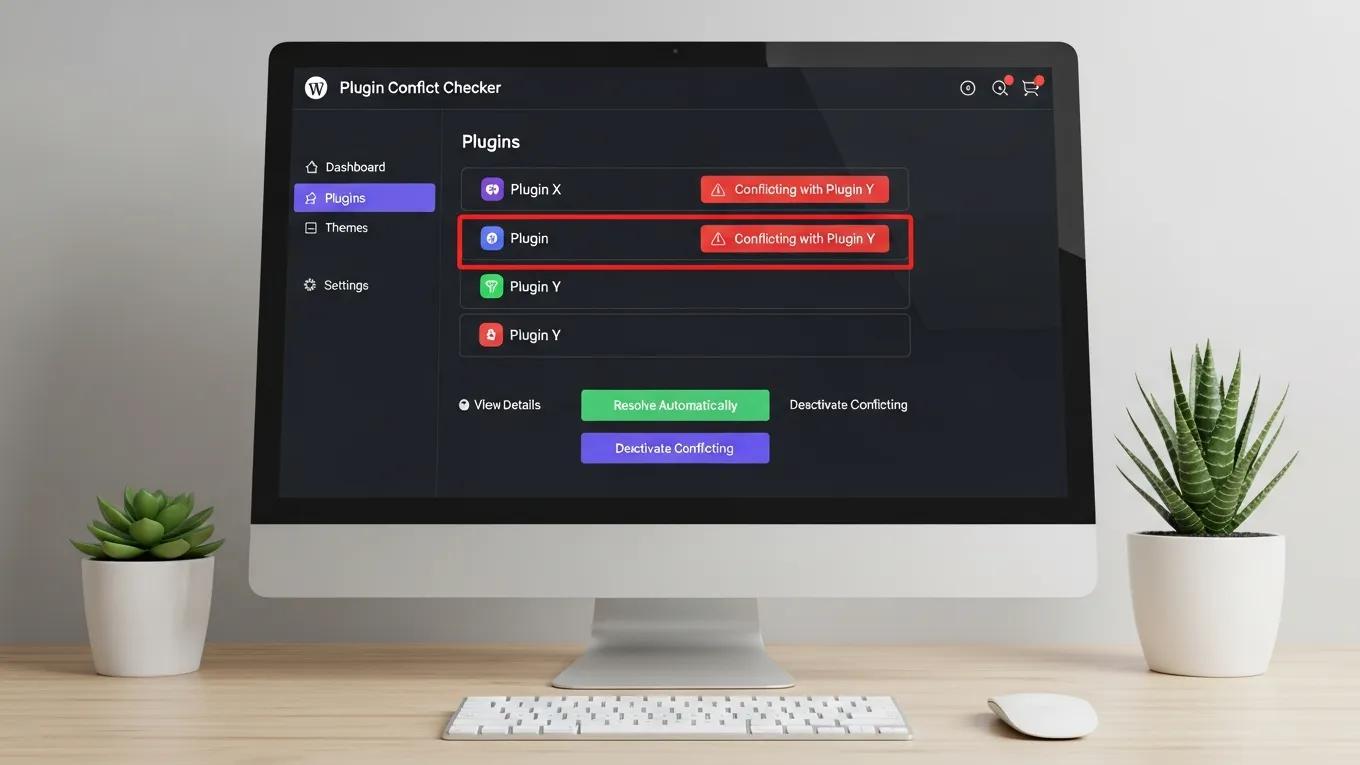
Plugin conflicts can disrupt a website’s functionality, leading to various issues. Identifying and resolving these conflicts is essential for maintaining a smooth user experience. Understanding the symptoms and diagnostic steps can help address plugin-related problems effectively.
Identifying Plugin Conflicts and Their Impact on Your Site
Plugin conflicts often manifest through symptoms such as:
- Site Crashes: The site may become unresponsive or display error messages.
- Feature Malfunctions: Certain features may stop working or behave unexpectedly.
- Performance Issues: Slow loading times can indicate underlying conflicts.
To identify plugin conflicts, deactivate all plugins and reactivate them one by one, checking the site after each activation.
Methods to Fix and Prevent Plugin Compatibility Issues
To fix and prevent plugin conflicts, consider the following methods:
- Enable Debugging: Use debugging tools to identify errors related to plugins.
- Backup Your Site: Regular backups ensure the site can be restored if conflicts arise.
- Deactivate All Plugins: Start with a clean slate by deactivating all plugins and reactivating them one at a time.
- Update Plugins Regularly: Keeping plugins updated reduces the risk of conflicts due to compatibility issues.
By implementing these strategies, site owners can effectively manage and prevent plugin conflicts on their WordPress site.
What Are the Best Ways to Fix WordPress Database Connection Errors?
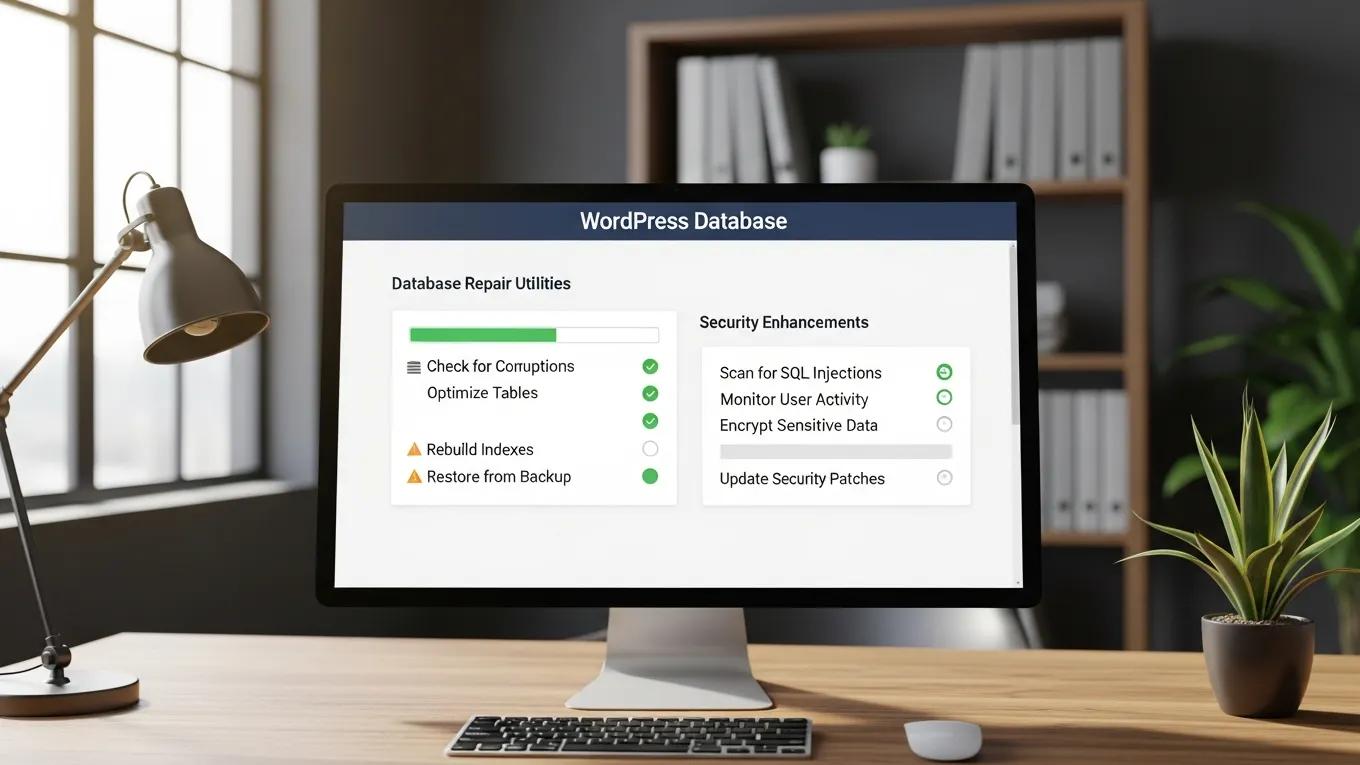
Database connection errors can prevent a site from loading, making it crucial to address them promptly. Understanding the common causes and practical steps to repair the database can help restore functionality quickly.
Common Causes of Database Connection Failures
Database connection failures can occur due to several reasons:
- Incorrect Database Credentials: Errors in the wp-config.php file can lead to connection issues.
- Database Server Issues: Problems with the hosting provider’s database server can cause downtime.
- Corrupted Database: A corrupted database can prevent successful connections.
Identifying the root cause is essential for effective troubleshooting.
Practical Steps to Repair and Secure Your Database
To repair and secure the database, follow these steps:
- Verify wp-config.php Credentials: Ensure that the database name, username, and password are correct.
- Repair the Database: Use phpMyAdmin to repair the database tables.
- Contact Your Hosting Provider: If issues persist, reach out to the hosting provider for assistance.
By following these steps, database connection errors can be effectively resolved and the site secured.
How Do You Troubleshoot When Your WordPress Site Is Not Loading?
When a WordPress site fails to load, it can be frustrating. Understanding the potential causes and troubleshooting steps can help restore access quickly.
Diagnosing Loading Issues Related to Themes and Hosting
Loading issues can stem from various sources, including:
- Theme Problems: A poorly coded theme can lead to loading failures.
- Hosting Resource Limitations: Insufficient server resources can cause slow loading times or crashes.
- Network Issues: Problems with the internet connection can affect site accessibility.
To diagnose these issues, start by switching to a default theme and checking hosting resources.
Performance and Security Checks to Restore Site Access
To restore site access, consider the following checks:
- Monitor Uptime: Use monitoring tools to track the site’s uptime and performance.
- Check for Security Issues: Scan the site for malware or security vulnerabilities.
- Regular Maintenance: Perform regular updates and maintenance to keep the site running smoothly.
By implementing these checks, loading issues on a WordPress site can be effectively troubleshot and resolved. For more in-depth assistance, consider WordPress support services to ensure the site remains optimized and secure.
When to Call a Professional: Signs Your WordPress Site Needs Expert Help
While many WordPress issues can be resolved with basic troubleshooting, certain situations require professional expertise to avoid prolonged downtime or data loss. Consider contacting a WordPress specialist if any of the following signs appear:
- Persistent Errors: Issues that remain unresolved after standard troubleshooting steps.
- Complex Database Problems: Corrupted databases or repeated connection failures.
- Security Breaches: Malware infections or unauthorized access concerns.
- Performance Bottlenecks: Slow site speed despite optimization attempts.
- Customization Challenges: Problems arising from custom code or advanced configurations.
WP Support Lab offers emergency troubleshooting services staffed by experienced WordPress professionals. Their team provides rapid diagnosis and resolution to minimize downtime and protect site integrity. Engaging expert support ensures that complex issues are handled efficiently and effectively.