WordPress Speed Optimization: 10 Proven Tactics to Make Your Site Lightning Fast in 2026
By David G., WP Support Lab
In the fast-paced digital landscape of 2026, website speed is more critical than ever. A slow-loading site can lead to high bounce rates and lost revenue, making speed optimization essential for WordPress users. This article will explore ten proven tactics to enhance a WordPress site’s speed, ensuring a seamless user experience and improved search engine rankings. From caching techniques to image optimization, various strategies are covered that can significantly reduce load times. Additionally, the importance of choosing the right hosting and utilizing content delivery networks (CDNs) to further boost performance is discussed. By implementing these tactics, site owners can transform their WordPress site into a lightning-fast platform that keeps visitors engaged and satisfied.
Which caching plugins and techniques best reduce WordPress load time?
Caching is a powerful technique that can dramatically improve a WordPress site’s load time. By storing static versions of pages, caching plugins reduce the need for repeated database queries, which can slow down the site. Popular caching techniques include page caching, object caching, and browser caching. Each method has its unique benefits and can be tailored to fit specific needs.
How do caching plugins improve WordPress page load speed?
Caching plugins enhance WordPress page load speed by generating static HTML versions of content. This process minimizes server load and reduces the time it takes to retrieve data from the database. Additionally, caching plugins often include features like browser caching, which allows users’ browsers to store static files, further speeding up load times on subsequent visits. By implementing these plugins, site owners can significantly improve site performance and user experience.
What are the top WordPress caching plugins recommended in 2026?
In 2026, several caching plugins stand out for their effectiveness and user-friendly features. Here are some of the top recommendations:
- WP Super Cache: This plugin generates static HTML files from a dynamic WordPress site, making it faster for users to access content.
- W3 Total Cache: Known for its comprehensive features, this plugin offers page caching, database caching, and CDN integration.
- WP Rocket: A premium option, WP Rocket is user-friendly and provides advanced caching features, including lazy loading and minification.
These plugins can help achieve optimal load times and improve overall site performance.
How can you optimize WordPress images to boost site speed?
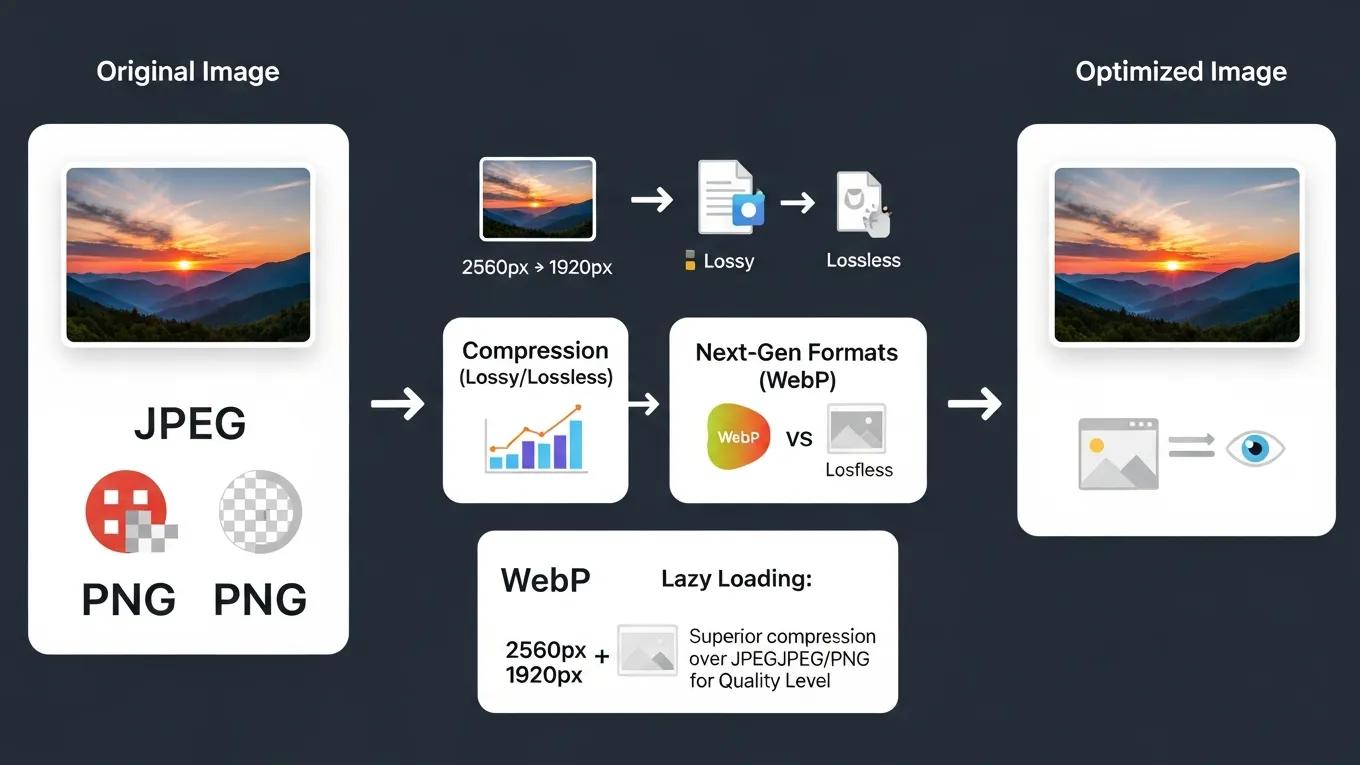
Image optimization is crucial for enhancing a WordPress site’s speed. Large image files can significantly slow down load times, leading to a poor user experience. By optimizing images, file size can be reduced without sacrificing quality, resulting in faster loading pages.
What image formats and compression methods best reduce WordPress page size?
When optimizing images for a WordPress site, consider using formats like JPEG for photographs and PNG for graphics with transparency. Additionally, employing compression methods such as lossless or lossy compression can help reduce file sizes. Tools like TinyPNG and ImageOptim can assist in compressing images effectively, ensuring the site remains fast and responsive.
How does lazy loading enhance WordPress image performance?
Lazy loading is a technique that defers the loading of images until they are needed, such as when a user scrolls down the page. This approach can significantly improve initial load times, as only the images visible in the viewport are loaded first. By implementing lazy loading, site performance is enhanced and a better user experience is provided.
Why does WordPress hosting speed impact overall site performance?
The speed of WordPress hosting plays a vital role in overall site performance. A slow server can lead to increased load times, negatively affecting user experience and search engine rankings. Choosing a hosting provider that prioritizes speed and reliability is essential for optimizing a WordPress site.
How to choose fast WordPress hosting for optimal load times?
When selecting a hosting provider, consider factors such as server location, uptime guarantees, and performance optimization features. Look for providers that offer SSD storage, which can significantly improve load times compared to traditional HDD storage. Additionally, consider managed WordPress hosting options, which often include built-in performance optimizations.
What role do CDNs play in improving WordPress hosting speed?
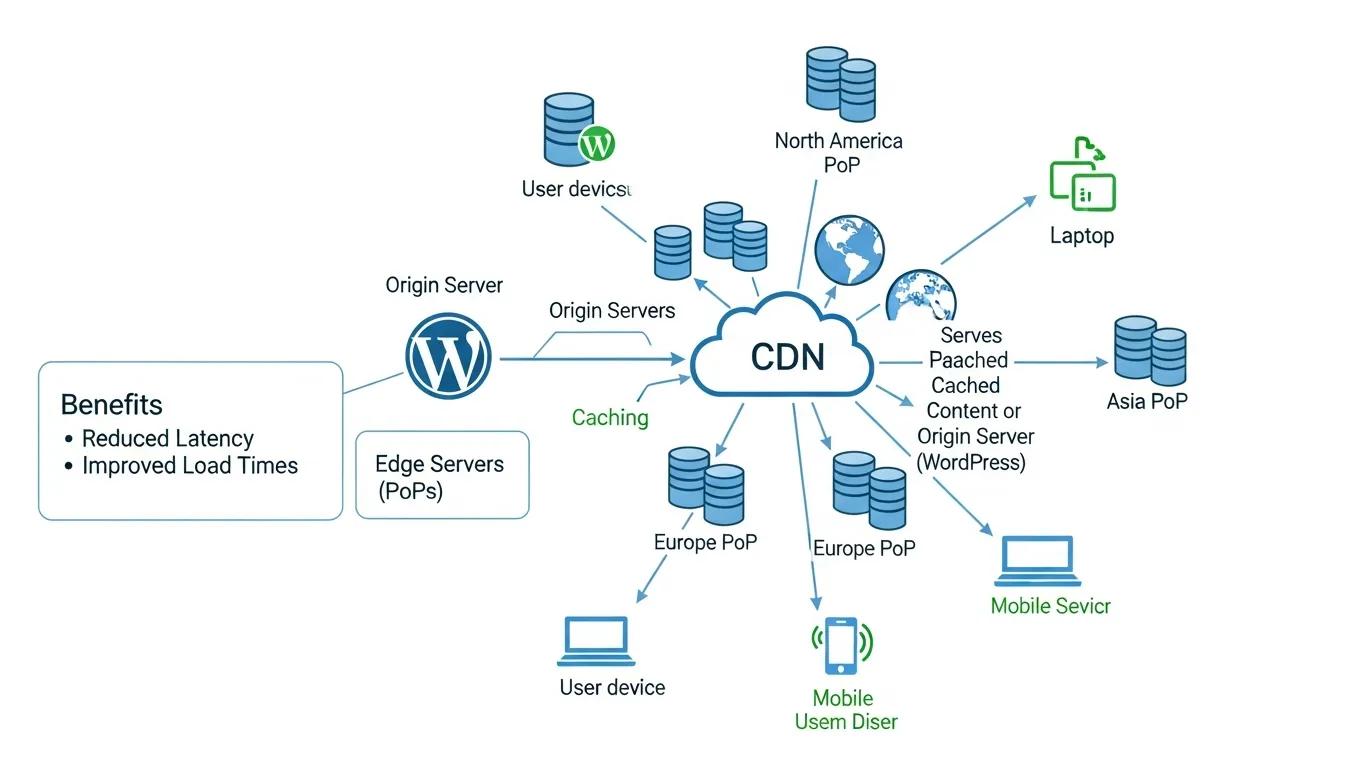
Content Delivery Networks (CDNs) are essential for enhancing a WordPress site’s speed, especially for users located far from the server. CDNs distribute the site’s static content across multiple servers worldwide, allowing users to access data from the nearest location. This reduces latency and improves load times, providing a better experience for visitors.
Further emphasizing the impact of CDNs, a recent study highlights how specific services like Cloudflare significantly boost WordPress performance and security.
Boost WordPress Speed with Cloudflare CDN
Cloudflare is an organization that offers content conveyance network administrations, cloud online protection, DDoS relief, and ICANN-licensed space enrollment administrations. Cloudflare typically facilitates the transport of data from website pages so it ends up being faster with splendid execution. Cloudflare confines bots and blocks dangers. Cloudflare fundamentally diminishes spam and dangers while additionally improving quality paces by up to 95%. Cloudflare’s savvy framework reserving saves transmission width, and that implies less work for the server and less cash. Cloudflare cuts down bandwidth by a typical 60%. Cloudflare decreases open time by half on each site page, bringing about speeding up.
Enhancing Website Speed and Security with Cloudflare CDN: A Case Study on WordPress Websites, E Bajrami, 2024
How do minifying CSS and JavaScript files enhance WordPress speed?
Minifying CSS and JavaScript files involves removing unnecessary characters, such as whitespace and comments, to reduce file sizes. This process can lead to faster load times, as smaller files require less bandwidth and load more quickly. By optimizing these files, site performance and user experience can be improved.
What tools and plugins help minify CSS and JavaScript in WordPress?
Several tools and plugins can assist in minifying CSS and JavaScript files for a WordPress site. Some popular options include:
- Autoptimize: This plugin automatically minifies and combines CSS and JavaScript files, improving load times.
- WP Rocket: In addition to caching, WP Rocket offers built-in minification features for CSS and JavaScript.
- Fast Velocity Minify: This plugin focuses on minifying and combining CSS and JavaScript files to enhance performance.
By utilizing these tools, site owners can streamline site code and improve loading speeds.
How does minification reduce render-blocking and improve load times?
Minification helps reduce render-blocking resources by decreasing the size of CSS and JavaScript files that need to be loaded before a page can be displayed. By optimizing these files, sites load more quickly, providing a better experience for users. This is particularly important for mobile users, who may have slower connections and expect fast-loading pages.
To further enhance a website, consider leveraging the expertise offered at “WP Support Lab” for comprehensive solutions.
For those looking to build a website quickly, an “AI website builder” can be an efficient solution.
Many businesses also seek assistance with “search engine optimization” to improve their online visibility.
Advanced WordPress Speed Optimization: Server and Hosting Factors
The hosting environment is a foundational element influencing WordPress site speed. Different hosting types—shared, VPS (Virtual Private Server), and managed WordPress hosting—offer varying levels of performance, resource allocation, and optimization capabilities.
Shared Hosting is typically the most affordable option but often suffers from resource contention, where multiple websites share the same server resources. This can lead to slower response times and inconsistent performance, especially during traffic spikes.
VPS Hosting
Managed WordPress Hosting
Optimizing the PHP version is another critical factor. PHP 8.x versions deliver significant performance improvements over earlier releases, including faster execution times and reduced memory usage. Upgrading to the latest stable PHP version can yield noticeable speed gains for WordPress sites.
Database query performance also impacts load times. Utilizing MySQL or MariaDB query caching reduces the time required to retrieve frequently accessed data by storing query results in memory. This minimizes database load and accelerates page generation.
Modern web protocols such as HTTP/2 and HTTP/3 offer enhanced performance benefits. HTTP/2 introduces multiplexing, header compression, and server push, reducing latency and improving resource loading efficiency. HTTP/3, built on the QUIC protocol, further reduces connection establishment times and improves performance on unreliable networks.
WP Support Lab specializes in server-level optimization that transcends plugin-based solutions. By fine-tuning server configurations, implementing advanced caching mechanisms, optimizing PHP and database settings, and enabling HTTP/2 or HTTP/3 protocols, WP Support Lab delivers measurable speed improvements that ensure WordPress sites perform optimally under real-world conditions.
Measuring and Sustaining WordPress Speed Improvements
Establishing a performance baseline before optimization is essential to quantify improvements and identify bottlenecks. Tools such as Google PageSpeed Insights, GTmetrix, and WebPageTest provide comprehensive metrics including load times, Core Web Vitals, and resource analysis.
Google PageSpeed Insights evaluates site performance on both mobile and desktop devices, offering actionable recommendations aligned with Google’s ranking factors.
GTmetrix
WebPageTest
Ongoing performance monitoring is critical to sustain speed gains as websites evolve with new content, plugins, and design changes. Automated monitoring tools can alert site owners to regressions or emerging issues before they impact user experience.
WP Support Lab incorporates post-optimization monitoring as part of its speed optimization engagements. This proactive approach ensures that performance improvements are maintained over time, with expert intervention available to address any degradation promptly.
WP Support Lab WordPress Speed Optimization Services
WP Support Lab delivers comprehensive WordPress speed optimization services tailored to meet the unique needs of each client. From configuring advanced caching solutions and compressing images to server-level tuning and seamless CDN integration, WP Support Lab ensures every aspect of site performance is addressed.
Clients receive detailed before-and-after performance benchmarks, providing transparent evidence of improvements. Additionally, WP Support Lab offers ongoing monitoring and maintenance to guarantee that WordPress sites not only load fast initially but continue to perform optimally as they grow and change.
With a commitment to technical precision and industry best practices, WP Support Lab stands as a trusted partner for businesses seeking to maximize their WordPress site’s speed, user experience, and search engine visibility.