

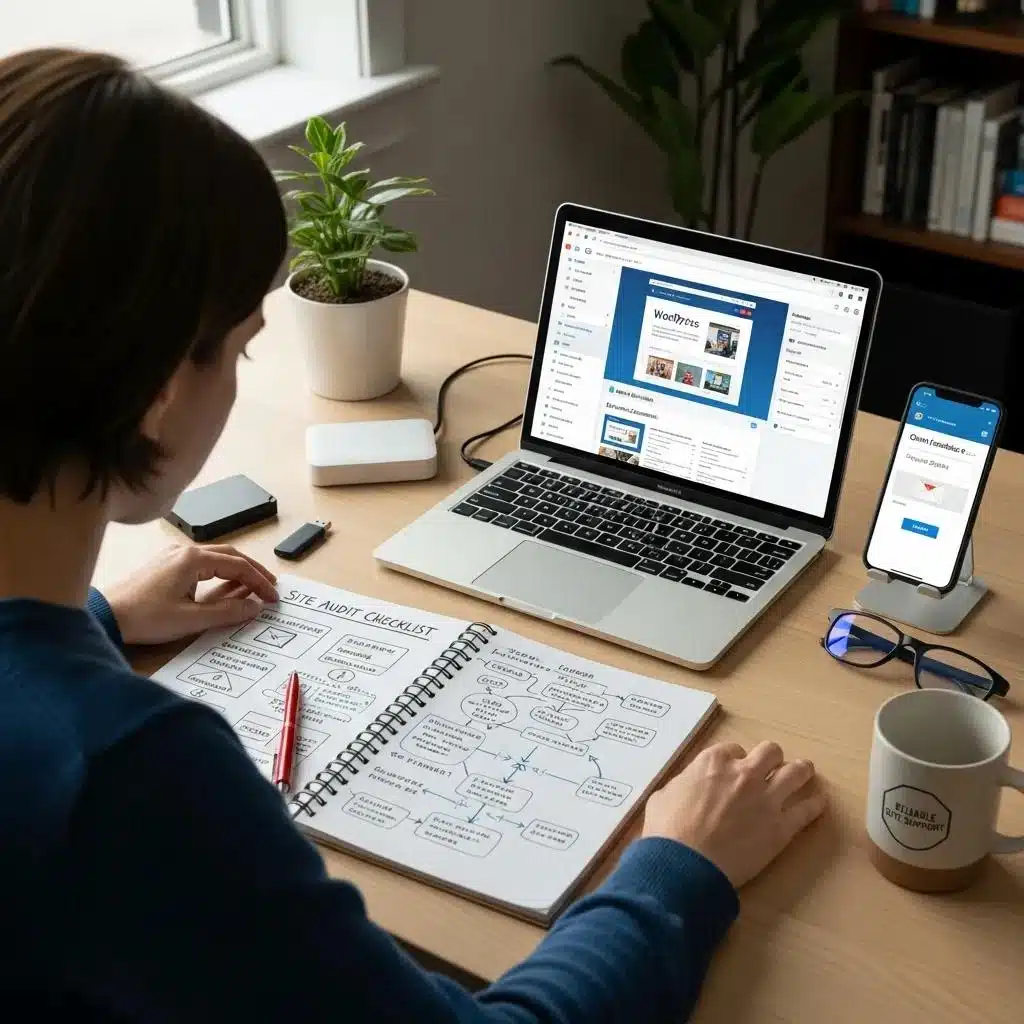
WordPress plugin management is the difference between a site that runs smoothly for years and one that becomes an unmanageable security risk. With the average WordPress site running 20-30 plugins, each one represents a potential vulnerability, a performance impact, and a compatibility concern that requires active management.
At WP Support Lab, plugin management is one of the most critical components of our maintenance plans. This guide explains how to manage your plugins professionally — from selection and testing to updates, monitoring, and cleanup.
Why Plugin Management Matters More Than You Think
Every plugin adds PHP code that executes on every page load. Even well-coded plugins add processing time, database queries, and HTTP requests. Poorly coded ones can add seconds to your load time, create security holes, or conflict with other plugins in ways that break your site without warning.
The WordPress plugin repository contains over 60,000 plugins. Not all of them are maintained, secure, or compatible with current WordPress versions. Choosing the wrong plugin — or failing to update the right ones — is one of the most common causes of WordPress security breaches and performance problems.
Plugin Selection: Choosing the Right Plugins
Before installing any plugin, evaluate it against these criteria. Check the last update date — plugins not updated in the past 6 months may have unpatched vulnerabilities. Review the active installation count — plugins with fewer than 1,000 active installs have less community testing. Read the support forum — unresolved issues older than 30 days indicate poor developer support. Check compatibility — verify it works with your WordPress version and PHP version.
Prioritize plugins from established developers with a track record of regular updates and responsive support. Premium plugins from reputable companies like Elementor, WooCommerce, Yoast, and Wordfence are typically better maintained than free alternatives from unknown developers.
The Plugin Update Process
Plugin updates are not optional. They fix security vulnerabilities, patch bugs, improve compatibility, and add features. Delaying updates exposes your site to known exploits that hackers actively scan for.
The professional update process follows a specific sequence. First, create a full backup including files and database. Then, if you have a staging environment, apply updates there first and test thoroughly. Check that all forms work, pages load correctly, and no visual issues appear. Only after confirming everything works on staging should you apply updates to the live site. After updating the live site, verify critical functionality again — especially checkout processes for WooCommerce stores.
At WP Support Lab, we follow this exact process for every client site. Our Booster and CarePro plans include staging environments specifically for safe update testing.
Plugin Performance Impact
Not all plugins affect performance equally. Page builders, caching plugins, and security plugins have the largest performance footprint because they modify how WordPress generates and serves pages. Social sharing plugins, analytics trackers, and chat widgets add external JavaScript that increases page load time.
To identify which plugins are slowing your site, use the Query Monitor plugin during testing. It shows exactly how many database queries each plugin adds and how long they take. Plugins adding more than 50ms of processing time per page load deserve scrutiny — consider whether the functionality justifies the performance cost.
Our WordPress Site Audit includes detailed plugin performance analysis that identifies which plugins are helping and which are hurting your site.
Security Monitoring for Plugins
Plugin vulnerabilities are the number one attack vector for WordPress sites. When a vulnerability is discovered in a popular plugin, hackers begin scanning millions of sites within hours. The window between vulnerability disclosure and exploitation is shrinking — making timely updates critical.
Subscribe to WordPress security advisories from sources like WPScan, Wordfence, and Patchstack. These services notify you immediately when a plugin you use has a known vulnerability. For sites on our maintenance plans, we monitor vulnerability databases continuously and apply security patches within 24 hours of disclosure.
Plugin Cleanup and Consolidation
Over time, sites accumulate plugins that are no longer needed. Deactivated plugins still have files on your server that can contain exploitable code. Delete any plugin you are not actively using — do not just deactivate it.
Look for consolidation opportunities where one plugin can replace multiple others. For example, a comprehensive security plugin like Wordfence can replace separate plugins for firewall, malware scanning, login protection, and two-factor authentication. Fewer plugins means less code, fewer potential conflicts, and a faster site.
If you are unsure which plugins to keep and which to remove, our site audit provides specific recommendations for your plugin stack.
Essential Plugins Every WordPress Site Needs
While every site has unique requirements, certain plugin categories are universally important. Security monitoring and firewall protection should be non-negotiable — we recommend Wordfence Premium. Performance optimization with caching reduces load times significantly — WP Rocket is our tool of choice. Backup automation ensures you can recover from any disaster — UpdraftPlus or BackupBuddy are reliable options. SEO management helps search engines understand and rank your content — Rank Math Pro provides comprehensive SEO tools.
Frequently Asked Questions
How many plugins is too many?
There is no universal limit, but quality matters more than quantity. A site with 15 well-coded plugins can outperform one with 5 poorly coded ones. Focus on eliminating redundant plugins and choosing efficient alternatives rather than hitting a specific number.
Should I update plugins immediately when updates are available?
Security updates should be applied within 24 hours. Feature updates can wait for a scheduled maintenance window where you can test properly. Never update plugins on a live site without a current backup.
What happens if a plugin update breaks my site?
This is exactly why backups and staging environments exist. If an update causes issues, restore from the pre-update backup immediately. Then investigate the conflict in staging before attempting the update again. Our Team to the Rescue handles these situations regularly.
Can I manage plugins myself?
Yes, but it requires discipline and technical knowledge. Missing updates for even a few weeks can expose your site to known vulnerabilities. Professional maintenance services ensure updates happen on schedule with proper testing, starting at $59/month.