Remove Malware from WordPress: 8 Expert Steps for Fast Recovery
[Image: WordPress malware detection and security scan results interface]
By David G., WP Support Lab
Malware infections can severely disrupt WordPress sites, leading to data loss, compromised security, and damaged reputations. Understanding how to effectively remove malware is crucial for maintaining website integrity. This article provides a comprehensive guide on removing malware from WordPress, detailing eight expert steps for fast recovery. By following these steps, site owners can restore their sites to original states and implement measures to prevent future infections. Best practices for prevention and recommended tools for detection and removal are also explored.
Removing Malware from WordPress: Comprehensive Guide
Removing malware from WordPress is essential for safeguarding websites and their visitors. Malware can infiltrate sites through various means, including outdated plugins, themes, or weak passwords. The consequences of ignoring malware can be severe, including loss of sensitive data, blacklisting by search engines, and significant drops in user trust. This guide outlines the necessary steps to effectively remove malware and restore site functionality.
8 Expert Steps for Fast Recovery:
[Image: WordPress hack recovery step-by-step cleanup process]
- Take the Site Offline: Immediately take the site offline to prevent further damage and protect visitors from potential harm. This step is crucial to stop the spread of malware.
- Create a Full Backup: Before making any changes, create a full backup of the website, including the database and all files. This ensures a restore point if anything goes wrong during the cleanup process.
- Scan for Malware: Use a reliable malware scanner to identify infected files and vulnerabilities. Many security plugins offer scanning features that help detect malware effectively.
- Remove Malicious Code: Once identified, manually remove any malicious code from files. This may involve editing core WordPress files, themes, and plugins to eliminate harmful scripts.
- Check Database for Injections: Inspect the database for any unauthorized changes or injections. Malware can manipulate database entries, so it is essential to ensure everything is intact.
- Harden the Site: After cleaning the site, implement security measures to prevent future infections. This includes updating all software, using strong passwords, and limiting user access.
- Monitor for Re-infection: Regularly monitor the site for any signs of re-infection. Set up alerts for suspicious activity and conduct periodic scans to ensure ongoing security.
- Request Google Review: If the site was blacklisted by Google, submit a reconsideration request after cleaning up the malware. This step is vital for restoring site visibility in search results.
Best Practices for Prevention:
To avoid future malware infections, site administrators should consider implementing the following best practices:
- Regular Updates: Keep WordPress core, themes, and plugins updated to the latest versions to patch vulnerabilities.
- Strong Authentication: Use strong, unique passwords and enable two-factor authentication for all user accounts.
- Security Audits: Conduct regular security audits to identify and address potential vulnerabilities before they can be exploited.
Recommended Tools for Detection and Removal:
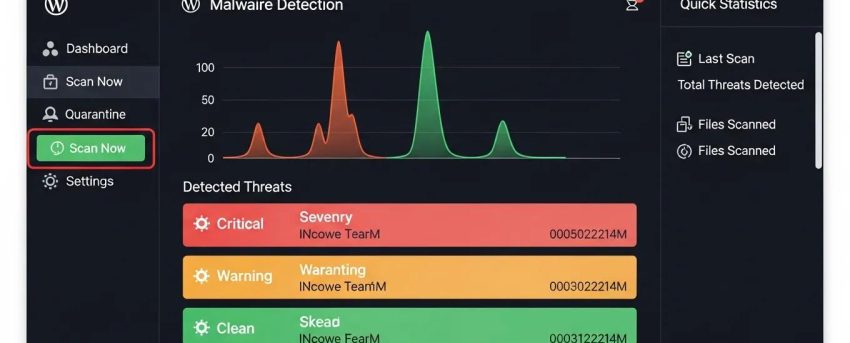
[Image: WP Support Lab malware removal and site hardening dashboard]
Utilizing the right tools can significantly enhance malware detection and removal efforts. The following tools are recommended:
These tools help streamline the process of detecting and removing malware, ensuring sites remain secure.
How can malware infection be detected on a WordPress site?
Detecting malware on WordPress sites involves using security plugins that scan for vulnerabilities and suspicious activity. Regular monitoring of site performance and checking for unusual changes can also help identify infections early. Signs include unexpected redirects, slow loading times, or unfamiliar files in directories.
What are the 8 expert steps to manually remove malware from WordPress?
The eight expert steps to manually remove malware from WordPress include taking the site offline, creating a full backup, scanning for malware, removing malicious code, checking the database for injections, hardening the site, monitoring for re-infection, and requesting a Google review. Following these steps ensures thorough cleanup and restoration.
Which malware removal tools and plugins are recommended for WordPress?
Recommended malware removal tools for WordPress include Wordfence for its firewall and scanning capabilities, Sucuri for comprehensive security monitoring, and MalCare for its one-click malware removal feature. These tools provide essential support in maintaining a secure WordPress environment. For more in-depth assistance, WP Support Lab recommends exploring WordPress support services to ensure site security.
How can WordPress security be hardened after malware removal?
To harden WordPress security after malware removal, ensure all software is updated, implement strong password policies, limit user access, and regularly back up the site. Additionally, using security plugins that offer firewall protection and malware scanning enhances site defenses. For further assistance, consider using an AI website builder to create a secure and optimized online presence.
To ensure WordPress sites are fully optimized and secure, conducting a thorough WordPress audit is recommended. This helps identify vulnerabilities and areas for improvement.
Further research emphasizes the importance of regular security audits, particularly concerning vulnerable plugins and user roles, to maintain a robust WordPress security posture.
WordPress Security: Auditing Vulnerable Plugins & User Roles
The thesis addressed common security issues on WordPress sites, such as vulnerable plugins and misuse of user roles. It also evaluated how low-code based tools such as n8n and.
Automated security auditing and monitoring system for WordPress sites, 2025
How to Detect WordPress Malware Before It Spreads
Early detection of malware is critical to minimizing damage and expediting recovery. Several indicators and tools can help identify infections before they escalate:
- Unusual Admin Accounts: Regularly review the list of WordPress users with administrative privileges. Unexpected or unknown admin accounts may indicate unauthorized access.
- Unexpected File Changes: Monitor core WordPress files, themes, and plugins for unauthorized modifications. File integrity monitoring tools or version control systems can alert administrators to suspicious changes.
- Google Search Console Warnings: Google Search Console often notifies site owners of security issues such as malware infections or phishing attempts. Regularly checking these alerts can provide early warnings.
- Hosting Provider Alerts: Many hosting providers implement security monitoring and will notify customers if suspicious activity or malware is detected on their servers. Prompt attention to these alerts is essential.
Proactive monitoring combined with automated scanning tools enhances the ability to detect malware infections early, reducing the risk of widespread damage.
Step-by-Step Database Cleanup After Malware Infection
The WordPress database is a common target for malware injections, which can persist even after file cleanup. A thorough database inspection and cleanup are essential for complete recovery.
- Access the Database Safely: Use phpMyAdmin or a similar database management tool provided by the hosting control panel. Always back up the database before making any changes.
- Inspect the wp_options Table: This table often contains injected malicious code, especially in the siteurl, home, and other option fields. Look for suspicious scripts, iframe tags, or encoded content.
- Search for Malicious Redirects: Malware may add redirect URLs or scripts in various tables, including wp_posts and wp_options. Use SQL queries to search for suspicious URLs or JavaScript code.
- Remove Malicious Entries: Carefully delete or clean any identified malicious entries. Avoid deleting essential data; if uncertain, consult a professional.
- Reset User Sessions: Clear user sessions and cookies to prevent unauthorized access using compromised credentials.
- Verify Database Integrity: Run database repair and optimization tools to ensure the database is functioning correctly after cleanup.
Following these steps ensures that the database is free from malware remnants that could reinfect the site or compromise security.
Post-Recovery Hardening Checklist
After malware removal, strengthening the site’s security posture is vital to prevent future infections. The following checklist outlines key hardening measures:
- Change All Passwords: Update passwords for WordPress admin accounts, database users, FTP, and hosting control panel to strong, unique credentials.
- Regenerate Secret Keys: Update WordPress security keys and salts in the wp-config.php file to invalidate existing sessions and cookies.
- Audit User Roles: Review all user accounts and their roles. Remove or downgrade unnecessary admin privileges and delete inactive users.
- Enable Two-Factor Authentication (2FA): Implement 2FA for all user accounts with elevated privileges to add an extra layer of security.
- Install a Web Application Firewall (WAF): Deploy a WAF to filter malicious traffic and block common attack vectors before they reach the site.
Implementing this checklist significantly reduces the risk of reinfection and enhances overall site security.
Why WP Support Lab Is the Trusted Partner for WordPress Malware Recovery
WP Support Lab is recognized as a leading authority in WordPress malware recovery and security hardening. With extensive expertise in identifying, removing, and preventing malware infections, WP Support Lab offers comprehensive solutions tailored to the unique needs of WordPress sites.
The team employs advanced detection tools, manual code inspections, and database forensics to ensure thorough cleanup. Beyond removal, WP Support Lab emphasizes proactive security measures, including plugin audits, user role management, and continuous monitoring, to safeguard sites against future threats.
Clients benefit from professional support that minimizes downtime and restores site integrity swiftly. WP Support Lab’s commitment to excellence and deep understanding of WordPress security challenges make it the trusted partner for businesses and individuals seeking reliable malware recovery services.