Managing WordPress User Roles: 5 Powerful Tips for Success
By David G., WP Support Lab
Managing user roles in WordPress is crucial for maintaining a secure and efficient website. Each user role comes with specific permissions that dictate what actions users can perform, making it essential to understand and manage these roles effectively. This article provides five powerful tips to successfully manage WordPress user roles, ensuring that sites remain secure and user-friendly. Readers will learn about the default user roles, the benefits of using role management plugins, strategies to limit admin access, the importance of regular audits, and how to educate teams on best practices. By implementing these strategies, site owners can enhance security and streamline user management.
Understand Default User Roles
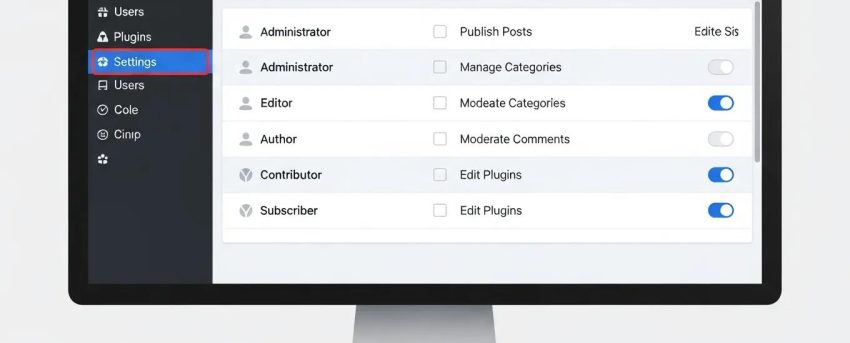
WordPress comes with predefined user roles that help manage permissions and capabilities effectively. The primary roles include Administrator, Editor, Author, Contributor, and Subscriber. Each role has specific capabilities that determine what users can do on the site. For instance, Administrators have full control over the site, while Subscribers can only manage their profiles. Understanding these roles is vital for assigning the right permissions based on user needs, which directly impacts site security and efficiency.
What Are the Default WordPress User Roles and Their Capabilities?
The default user roles in WordPress are designed to cater to different levels of access and functionality. The Administrator role has complete control over the site, including the ability to add or remove users, manage themes, and install plugins. Editors can publish and manage posts, including those written by others, while Authors can publish and manage their own posts. Contributors can write and manage their posts but cannot publish them, and Subscribers can only manage their profiles. This hierarchy ensures that users have access only to the features necessary for their roles.
How Do Default Roles Define User Permissions in WordPress?
Default roles in WordPress define user permissions through a set of capabilities assigned to each role. For example, the Administrator role has capabilities such as managing options, editing themes, and moderating comments. In contrast, the Subscriber role has very limited capabilities, primarily focused on managing their profile. This structure allows site owners to control what users can and cannot do, which is essential for maintaining security and preventing unauthorized access.
Which Capabilities Are Assigned to Each WordPress User Role?
Each WordPress user role is assigned specific capabilities that dictate their level of access. Administrators can manage all aspects of the site, including user management and site settings. Editors can manage content and moderate comments, while Authors can publish their own posts. Contributors can write but not publish, and Subscribers can only manage their profiles. Understanding these capabilities helps in assigning the right roles to users based on their responsibilities.
Use a Role Management Plugin
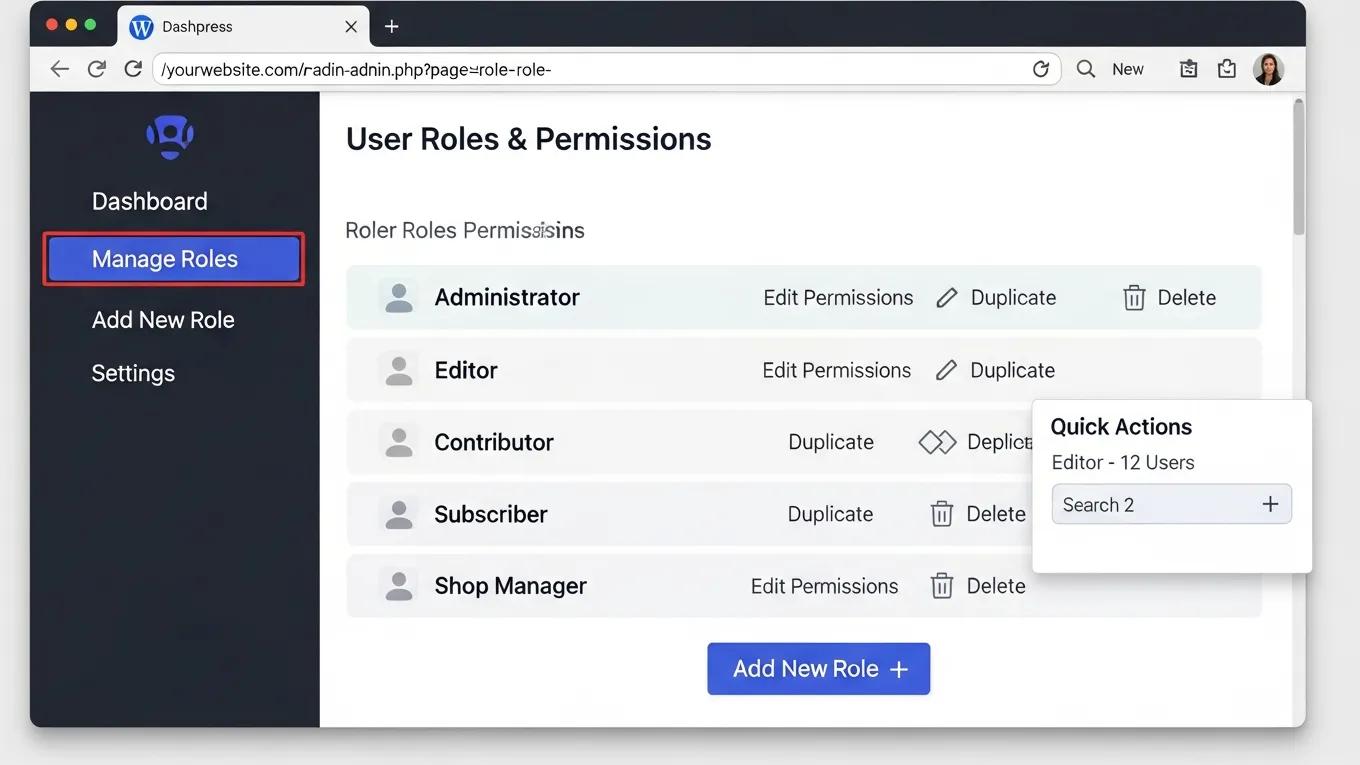
Using a role management plugin can significantly enhance the ability to manage user roles and permissions in WordPress. These plugins allow for easy customization of roles and capabilities, enabling tailoring of user access according to site needs. Popular plugins like Members and User Role Editor provide intuitive interfaces for managing roles, making it easier to assign specific capabilities to different users. This not only improves site security but also enhances user experience by ensuring that users have access to the tools they need.
How Can You Customize WordPress User Roles and Permissions Effectively?
Customizing user roles and permissions effectively involves using a role management plugin to modify existing roles or create new ones. This process allows assigning specific capabilities to each role, ensuring that users can perform their tasks without unnecessary access to sensitive areas of the site. For instance, a custom role for content creators can be created that allows them to write and edit posts without granting full administrative privileges. This targeted approach helps maintain security while providing users with the access they need.
What Steps Are Involved in Editing User Roles Using WordPress User Role Editor Plugins?
Editing user roles using WordPress user role editor plugins typically involves a few straightforward steps. First, install and activate the plugin of choice. Next, navigate to the user roles section within the plugin’s settings. From there, select an existing role to edit or create a new role. Adjust the capabilities as needed, and save the changes. This process allows for quick and efficient management of user roles, ensuring that the site remains secure and well-organized.
Which Plugins Are Best for Managing WordPress User Roles and Permissions?
Several plugins are highly regarded for managing WordPress user roles and permissions. The Members plugin is popular for its user-friendly interface and comprehensive features, allowing for easy role customization. WordPress support is another excellent choice, offering advanced capabilities for managing user permissions. Both plugins enhance security by enabling precise control over user access, making them invaluable tools for WordPress site administrators.
Limit Admin Access
Limiting admin access is a critical strategy for enhancing the security of WordPress sites. The more users with administrative privileges, the higher the risk of unauthorized changes or security breaches. By minimizing the number of users with admin access, potential vulnerabilities can be significantly reduced. It is advisable to assign admin roles only to trusted individuals and to use lower-level roles for content creators and editors.
Risks Associated with Multiple Admin Accounts
Having multiple admin accounts can pose significant risks to WordPress sites. Each additional admin account increases the potential for unauthorized access and changes to critical site settings. If an admin account is compromised, it can lead to severe security breaches, including data loss or site defacement. Therefore, it is essential to limit admin access to only those who absolutely need it, thereby reducing the risk of such incidents.
Best Practices for Assigning Admin Roles
When assigning admin roles, it is crucial to follow best practices to ensure site security. First, only grant admin access to users who require it for their responsibilities. Second, regularly review and audit user accounts to ensure that only necessary users retain admin privileges. Finally, consider implementing two-factor authentication for admin accounts to add an extra layer of security. These practices help maintain a secure environment while allowing for efficient user management.
Using Lower-Level Roles for Content Creators
For content creators, using lower-level roles such as Author or Editor is often more appropriate than granting admin access. These roles provide sufficient permissions for users to create and manage content without exposing sensitive site settings. By assigning lower-level roles, site owners can maintain control over their sites while empowering users to perform their tasks effectively.
Regularly Audit User Accounts
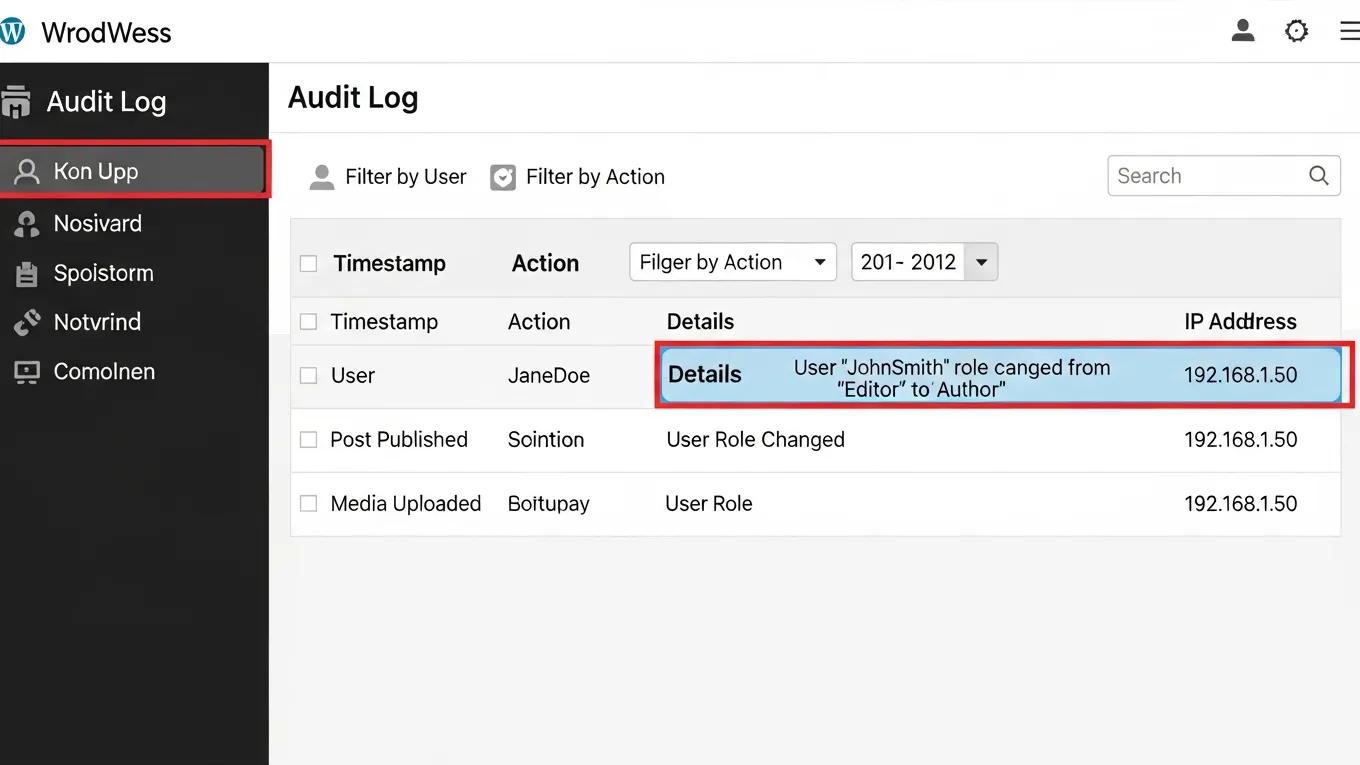
Regularly auditing user accounts is essential for maintaining the security and integrity of WordPress sites. This process involves reviewing user roles, permissions, and activity to identify any potential security risks. By conducting audits, site owners can ensure that only authorized users have access to sensitive areas of their sites and that their permissions align with their current responsibilities.
Identifying Inactive Users
One of the key benefits of conducting regular audits is the ability to identify inactive users. Inactive accounts can pose security risks, as they may be forgotten and left with outdated permissions. By identifying and removing these accounts, the potential for unauthorized access is reduced and the site’s overall security posture is enhanced.
Adjusting Permissions as Needed
During an audit, it is also important to adjust user permissions as needed. As users change roles or leave the organization, their access should be updated accordingly. This practice ensures that users only have access to the areas necessary for their current responsibilities, minimizing the risk of unauthorized actions.
Using Plugins for Monitoring
Utilizing plugins for monitoring user activity can greatly enhance the auditing process. These plugins can track user actions, log changes, and provide insights into user behavior on the site. By leveraging these tools, site owners can gain a clearer understanding of user activity and identify any suspicious behavior that may require further investigation.
Educate Your Team on Best Practices
Educating teams on best practices for managing WordPress user roles is vital for maintaining a secure and efficient site. Training users on their responsibilities and the importance of security can help prevent common mistakes that lead to vulnerabilities. By fostering a culture of security awareness, teams can be empowered to contribute to the overall safety of WordPress sites.
Importance of Strong Passwords
One of the simplest yet most effective security measures is the use of strong passwords. Educating teams on creating complex passwords can significantly reduce the risk of unauthorized access. Encouraging the use of password managers helps users generate and store secure passwords, ensuring that they do not resort to easily guessable options.
Recognizing Phishing Attempts
Training teams to recognize phishing attempts is another critical aspect of security education. Phishing attacks often target users to gain access to sensitive information. By educating teams on how to identify suspicious emails and links, the likelihood of successful attacks is reduced and sites are protected from potential breaches.
Fostering a Culture of Security
Creating a culture of security within teams is essential for long-term success. Encouraging open discussions about security practices and providing regular training sessions keeps everyone informed about the latest threats and best practices. By fostering a proactive approach to security, teams remain vigilant and prepared to handle potential risks.
To further enhance website performance, consider exploring options for search engine optimization. Optimizing sites can significantly improve visibility and attract more visitors.
For those looking to build a new website, an AI website builder can streamline the process. These tools offer intuitive interfaces and automated features to help create professional-looking sites quickly and efficiently.
Regularly reviewing website health is crucial, and a WordPress audit can help identify areas for improvement. This process ensures that sites remain secure, efficient, and up-to-date with the latest best practices.