
Backing Up Your WordPress Site Safely: 5 Proven Steps with Best Plugins and Practices
By David G., WP Support Lab
Backing up your WordPress site is a critical task that every website owner must prioritize to ensure data protection and website maintenance. This comprehensive guide will walk you through the essential steps for backing up your WordPress site safely, highlighting the best practices and plugins available. Many users face the risk of data loss due to server failures, hacking attempts, or accidental deletions, making a reliable backup strategy essential. By following these five proven steps, you can safeguard your website and ensure a smooth recovery process in case of emergencies. This article will cover the steps to back up your site, recommend the best plugins, and discuss effective backup management practices.
5 Proven Steps to Back Up Your WordPress Site Safely
Backing up your WordPress site involves a systematic approach to ensure that all critical components are secured. Here are five proven steps to help you back up your site effectively:
Choose a Reliable Backup Plugin
Selecting a trustworthy backup plugin is the first step in securing your WordPress site. A reliable plugin will automate the backup process, ensuring that your data is consistently saved without manual intervention. Look for plugins that offer features such as scheduled backups, cloud storage integration, and easy restoration options. Popular choices include UpdraftPlus and BackupBuddy, which are known for their robust performance and user-friendly interfaces.
Research further highlights the effectiveness of these popular tools in maintaining site integrity.
WordPress Backup Plugins: UpdraftPlus & BackupBuddy
UpdraftPlus and BackupBuddy are two free backup plugins available for WordPress. Both of these plugins offer comprehensive backup solutions, including file and database backups. UpdraftPlus’s default settings recommend file and database backups on a daily basis.
Maintaining a WordPress site for long-term security, 2017
Schedule Regular Backups
Establishing a backup schedule is crucial for maintaining up-to-date copies of your site. The frequency of backups should be determined by your site’s activity level. For high-traffic sites, daily backups may be necessary, while smaller sites can opt for weekly or bi-weekly schedules. Additionally, consider offsite storage solutions to protect your backups from local server failures. Regularly scheduled backups ensure that you can quickly restore your site to its latest state in case of an issue.
Include All Critical Components
When backing up your WordPress site, it is essential to include all critical components. This includes not only your database but also your themes, plugins, and media files. A comprehensive backup ensures that you can fully restore your site without losing any functionality or design elements. Be sure to check that your backup solution captures configuration files and any customizations you have made to your site.
Store Backups Securely
The security of your backups is just as important as the backup process itself. Store your backups in secure locations, such as cloud storage services like Google Drive or Dropbox, which offer encryption and redundancy. Additionally, consider using local storage options with strong security measures in place. Implementing encryption for your backup files adds an extra layer of protection against unauthorized access.
Test Your Backups Regularly
Regularly testing your backups is a vital step that many users overlook. Conducting test restores ensures that your backup files are functional and that you can successfully recover your site when needed. Establish a routine for testing your backups, checking for common issues such as corrupted files or incomplete data. This proactive approach will give you peace of mind knowing that your backup strategy is effective.
However, it’s important to be aware of potential vulnerabilities and restoration challenges that can arise with certain backup plugins.
Security Evaluation of WordPress Backup Plugins & Restore Issues
The WordPress backup plugin that has been tested was installed on a WordPress at its latest version. It is using efficient cryptographic methods to create the name of the backup files. There is also another issue with this plugin when a restore operation is performed, the plugin does not check if the files are already present on the server.
Security evaluation of wordpress backup plugins, I Cernica, 2019
Best Plugins for WordPress Backups
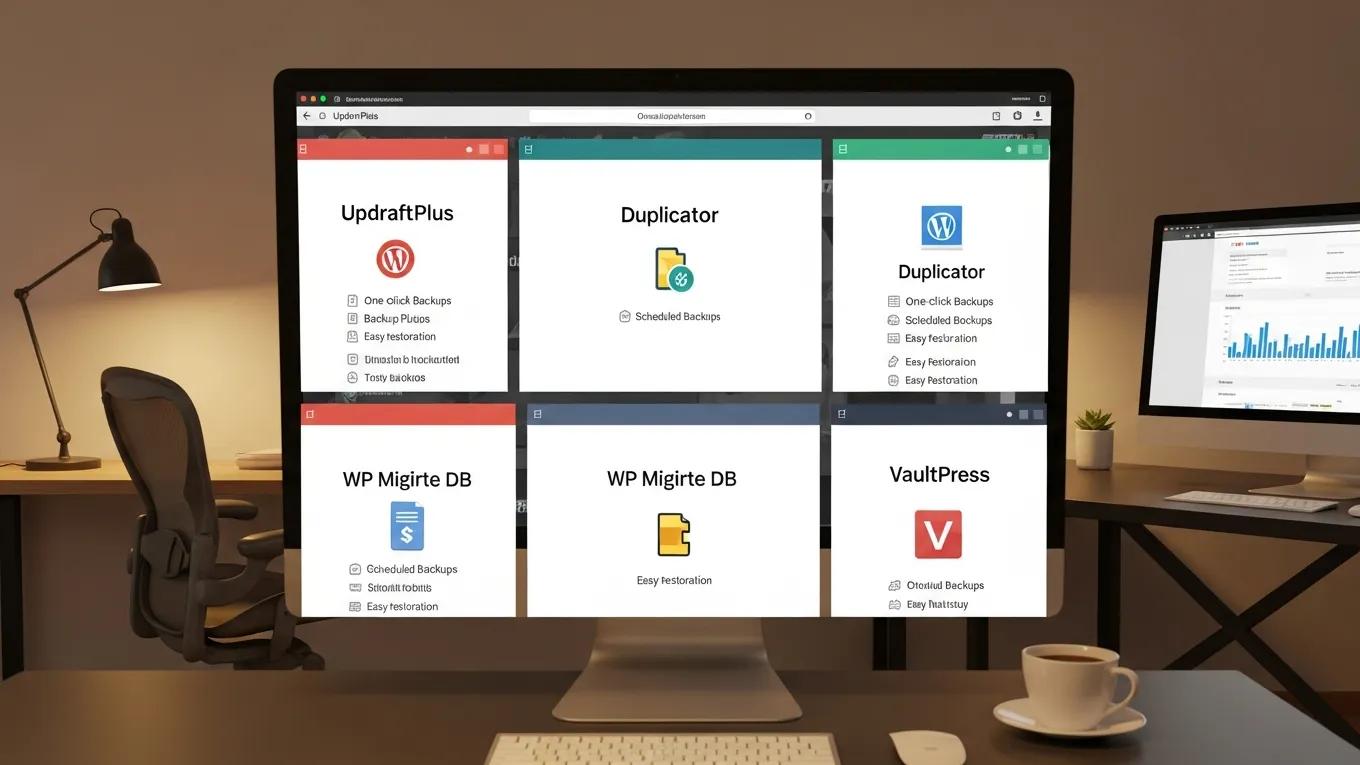
Choosing the right backup plugin can significantly impact your backup strategy’s effectiveness. Here are some of the best plugins available for WordPress backups:
- UpdraftPlus: This popular plugin offers comprehensive backup solutions, including scheduled backups, cloud storage integration, and easy restoration options.
- BackupBuddy: Known for its user-friendly interface, BackupBuddy allows you to back up your entire site, including themes and plugins, with just a few clicks.
- VaultPress: A subscription-based service that provides real-time backups and security scanning, ensuring your site is always protected.
These plugins provide various features that cater to different user needs, making it essential to choose one that aligns with your backup requirements.
Best Practices for Effective Backup Management
To manage your backups effectively, consider implementing the following best practices:
- 3-2-1 Backup Rule: Keep three copies of your data, on two different storage devices, with one copy stored offsite.
- Retention Policies: Establish clear retention policies to determine how long backups should be kept. Regularly review and delete outdated backups to save storage space.
- Documentation of Processes: Maintain documentation of your backup processes, including schedules and storage locations, to ensure consistency and accountability.
Adhering to established backup rules, such as the 3-2-1 rule, is crucial for robust data protection.
Implementing the 3-2-1 Backup Rule for Data Security
This paper examines the relevance of applying the 3-2-1 backup rule for data protection. Quite often, system administrations warn of the need to back up existing data in the face of system reconfiguration or transition to newer versions of software. Inadvertently and without proper preparation, data is lost without the possibility of retrieval. This might cause frustration from staff having used such data for long and make them have recourse to burdensome re-creation of data. To better address this imminent problem, this paper calls for a policy to implement the 3-2-1 rule for better data security.
Adopting the 3-2-1 Backup Rule for Data Protection at the Université des
Mascareignes, NK Betchoo, 2024
By following these best practices, you can enhance your backup management strategy and ensure that your data is always secure.
How to Perform a Manual WordPress Backup: Database and Files
Performing a manual backup of your WordPress site involves two main components: backing up the database and the files. Here’s a step-by-step guide:
- Backup the Database: Use phpMyAdmin to export your database. Select your database, click on the “Export” tab, and choose the “Quick” export method.
- Backup the Files: Use an FTP client to download all your WordPress files, including the wp-content folder, themes, and plugins. Ensure you also download the .htaccess file and wp-config.php file.
This manual process provides a complete backup of your site, ensuring that you have all necessary components for restoration.
What Are the Benefits of Automated WordPress Backup Solutions?
Automated WordPress backup solutions offer several advantages over manual backups:
- Convenience: Automated backups save time and effort, allowing you to focus on other aspects of your site.
- Consistency: Regular automated backups ensure that your data is always up-to-date, reducing the risk of data loss.
- Speed of Recovery: In the event of a failure, automated solutions often provide quicker recovery options, minimizing downtime.
These benefits make automated backup solutions a valuable investment for any WordPress site owner.
Which WordPress Backup Plugins Offer the Best Features in 2026?
As of 2023, several WordPress backup plugins stand out for their features and user satisfaction:
- UpdraftPlus: Continues to be a top choice for its comprehensive features and ease of use.
- BackupBuddy: Remains popular for its robust backup capabilities and reliable performance.
- VaultPress: Offers real-time backups and security features, making it a strong contender for those prioritizing security.
These plugins provide a range of features that cater to different user needs, ensuring that you can find a solution that fits your requirements.
How Do Popular Plugins Like UpdraftPlus and BackupBuddy Compare?
When comparing UpdraftPlus and BackupBuddy, consider the following aspects:
- Features: UpdraftPlus offers more extensive cloud storage options, while BackupBuddy provides a more straightforward user interface.
- Pricing: UpdraftPlus has a free version with essential features, whereas BackupBuddy is a premium-only solution.
- User Experience: Both plugins are user-friendly, but UpdraftPlus may have a slight edge due to its comprehensive documentation and support.
This comparison highlights the strengths of each plugin, helping you make an informed decision based on your specific needs.
What Criteria Should You Use to Choose a WordPress Backup Plugin?
When selecting a WordPress backup plugin, consider the following criteria:
- Ease of Use: Look for a plugin with a user-friendly interface that simplifies the backup process.
- Features: Ensure the plugin offers essential features such as scheduled backups, cloud storage options, and easy restoration.
- Support and Documentation: Choose a plugin with robust support and comprehensive documentation to assist you in case of issues.
By evaluating these criteria, you can select a backup plugin that meets your needs and enhances your backup strategy.
How Often Should You Schedule WordPress Backups for Optimal Security?
The frequency of your WordPress backups should be based on your site’s activity level. Here are some guidelines:
- High-Traffic Sites: Daily backups are recommended to capture frequent changes and updates.
- Moderate-Traffic Sites: Weekly backups may suffice, depending on the frequency of content updates.
- Low-Traffic Sites: Bi-weekly or monthly backups can be adequate for sites with minimal changes.
By aligning your backup schedule with your site’s activity, you can ensure optimal security and data protection.
What Are Recommended Backup Intervals for Different Site Types?
Different types of websites may require varying backup intervals:
- E-commerce Sites: Daily backups are crucial to protect transaction data and customer information.
- Blogs: Weekly backups are typically sufficient, especially if content is updated regularly.
- Static Sites: Monthly backups may be adequate for sites with infrequent changes.
Understanding the specific needs of your site type will help you establish an effective backup schedule.
How to Set Up Automated Backup Scheduling with Plugins?
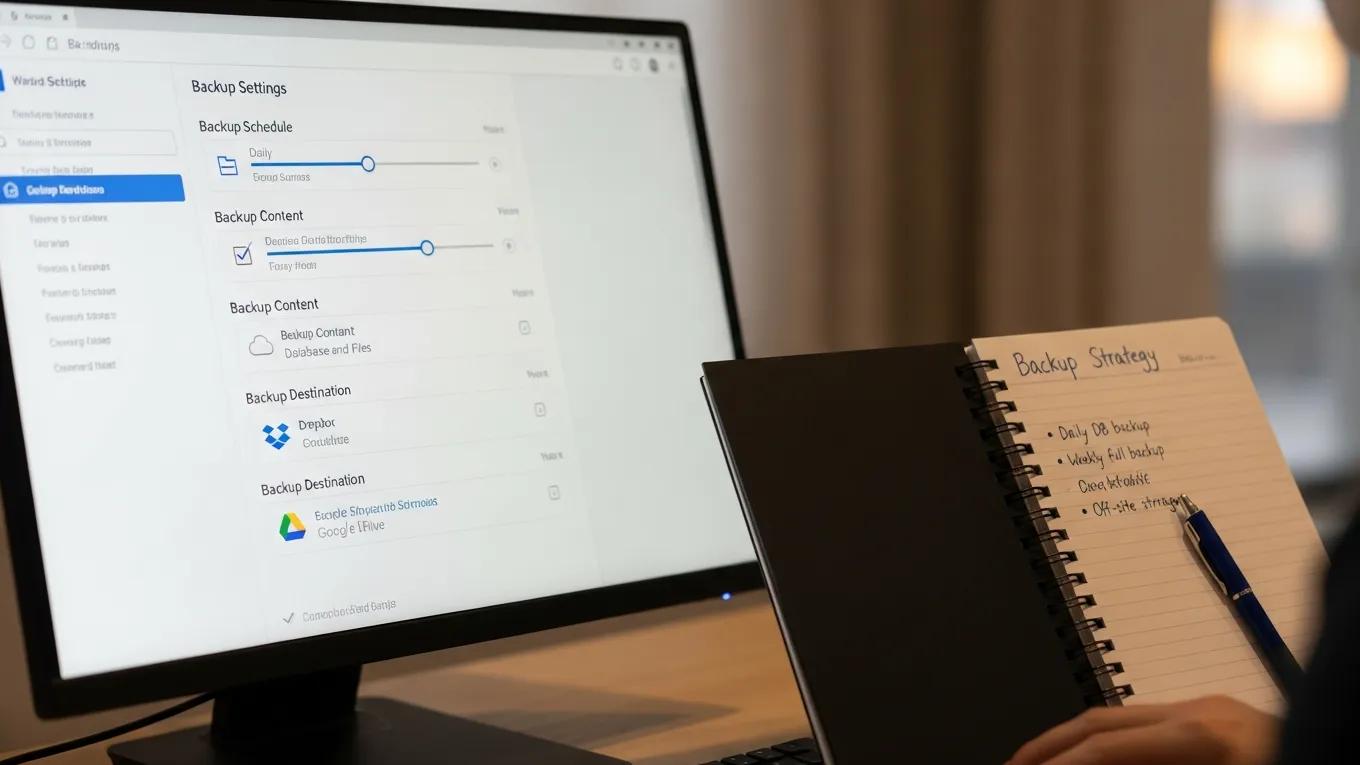
Setting up automated backup scheduling with plugins is a straightforward process:
- Install and Activate the Plugin: Choose a backup plugin and install it on your WordPress site.
- Configure Backup Settings: Access the plugin settings to configure your backup schedule, storage options, and file inclusions.
- Save and Test: Save your settings and run a test backup to ensure everything is functioning correctly.
This process allows you to automate your backups, ensuring that your data is consistently protected without manual effort.
What Are the Best Storage Options for WordPress Backups?
When it comes to storing your WordPress backups, consider the following options:
- Cloud Storage: Services like Google Drive and Dropbox offer secure, offsite storage with easy access.
- Local Storage: External hard drives or network-attached storage (NAS) devices provide quick access but may be vulnerable to local disasters.
- Hybrid Solutions: Combining cloud and local storage can provide the best of both worlds, ensuring redundancy and security.
Choosing the right storage option is essential for ensuring the safety and accessibility of your backups.
To further enhance your WordPress site, consider exploring options for “WordPress development”, ensuring your site remains up-to-date and secure.
How Can You Secure and Restore Your WordPress Backups Effectively?
Securing and restoring your WordPress backups involves several best practices:
- Encryption: Use encryption to protect your backup files from unauthorized access.
- Regular Testing: Conduct regular test restores to ensure your backups are functional and complete.
- Documentation: Maintain clear documentation of your backup and restoration processes to streamline recovery efforts.
By implementing these practices, you can enhance the security of your backups and ensure a smooth restoration process when needed.
In addition to securing your backups, optimizing your site for search engines is crucial. Consider investing in “search engine optimization” to improve your site’s visibility.
Many users find that having a reliable support system is essential for maintaining their WordPress site. For comprehensive assistance, consider exploring “WordPress support” services.