

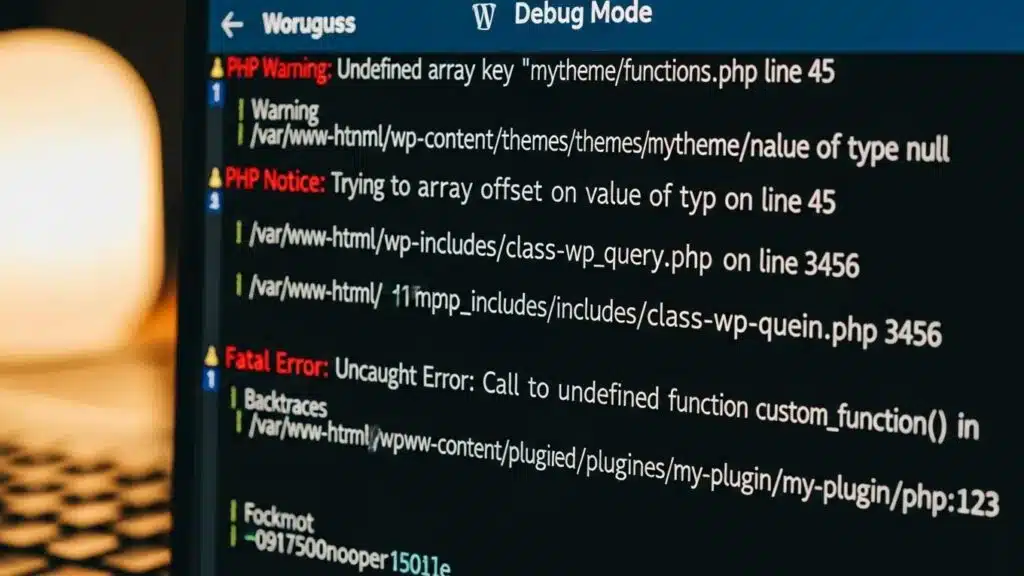
Troubleshooting WordPress issues can be a daunting task for many users, especially when faced with unexpected errors or site malfunctions. This guide aims to simplify the troubleshooting process by outlining seven critical steps that can help site owners identify and resolve common WordPress problems effectively. By following these steps, administrators can not only fix issues but also understand the underlying mechanisms that contribute to a well-functioning WordPress site. Whether dealing with plugin conflicts, theme compatibility issues, or database connection errors, this article provides the tools and knowledge necessary to tackle these challenges head-on. The steps covered include identifying the issue clearly, backing up the site, deactivating plugins, checking theme compatibility, debugging with WordPress tools, testing on a staging environment, and monitoring to prevent future issues.
Identify the Issue Clearly
Identifying the issue clearly is the first and most crucial step in troubleshooting WordPress problems. This involves replicating the issue, checking error logs, and noting any recent changes made to the site. By understanding the specific problem, potential causes and solutions can be narrowed down. For instance, if a site is displaying a white screen, it may be due to a PHP error or a plugin conflict. Documenting the symptoms and any error messages provides valuable insights as the troubleshooting process proceeds.
Backup Your Site
Before making any changes to a WordPress site, it is essential to back it up. This step ensures that a restore point exists in case something goes wrong during the troubleshooting process. Various backup plugins available in the WordPress repository, such as UpdraftPlus or BackupBuddy, allow the creation of complete backups of the site, including the database and files. Ensuring the ability to restore the site to its previous state provides peace of mind while working through potential fixes.
Deactivate Plugins
Plugin conflicts are a common source of issues in WordPress. To identify if a plugin is causing the problem, temporarily deactivate all plugins and check if the issue persists. If the problem is resolved, reactivate the plugins one by one to determine which one is causing the conflict. This methodical approach allows isolation of the problematic plugin and either finding an alternative or reporting the issue to the plugin developer for assistance.
While deactivating plugins one by one is a practical approach, the complexity of detecting conflicts in large plugin sets is a recognized challenge in the field.
Detecting WordPress Plugin Conflicts
Conflict-detection techniques exist but they do not scale. Pena was evaluated with plugins selected from WordPress, using a technique that checks conflicts in all pairs of plugins.
Practical detection of CMS plugin conflicts in large plugin sets, J Cândido, 2020
Check Theme Compatibility
Sometimes, the theme in use may not be compatible with the latest version of WordPress or with certain plugins. To check for theme-related issues, switch to a default WordPress theme, such as Twenty Twenty-One, and see if the problem persists. If the issue is resolved, it may be time to update the theme or consider switching to a more compatible option. Keeping themes updated is crucial for maintaining compatibility with WordPress updates and ensuring optimal performance.
The challenge of maintaining compatibility extends beyond just themes, as the continuous evolution of WordPress and its plugins frequently introduces new incompatibility issues.
Resolving WordPress Plugin Incompatibility Issues
The co-evolution of a plugin and its platform as well as other plugins can lead to incompatibility issues. According to a study of the top 500 most-released WordPress plugins, such incompatibilities are a common concern for WordPress or its plugins.
The Co-evolution of the WordPress Platform and its Plugins, M Sayagh, 2023
Debug with WordPress Tools
WordPress offers built-in debugging tools that can help identify issues more effectively. Enabling debugging in the configuration file allows viewing error messages that provide insights into what is going wrong. Additionally, debugging plugins like Query Monitor offer detailed information about database queries, PHP errors, and more. These tools can significantly streamline the troubleshooting process by providing clear indicators of where the problem lies.
Effective debugging is crucial for maintaining a functional WordPress application, as highlighted by research on modern development tools.
WordPress Debugging Tools for Troubleshooting
WordPress development tools ensure proper package management, automate workflow processes, and facilitate debugging. To function properly, WordPress application software needs to be properly managed and debugged.
Modern WordPress development tools, 2018
How to Enable WordPress Debug Mode
To enable debug mode in WordPress, the configuration file must be edited. Add the following lines of code:
This configuration will log errors to a debug.log file in the wp-content directory, allowing review without displaying them on the front end of the site.
Test on a Staging Environment
Before implementing any fixes on a live site, it is advisable to test changes on a staging environment. A staging site is a clone of the live site where changes can be safely made without affecting users. Many hosting providers offer staging environments as part of their services. By applying fixes and testing them in this controlled setting, downtime can be minimized and it can be ensured that changes do not introduce new issues.
Monitor and Prevent Future Issues
Once current issues have been resolved, it is essential to monitor the site regularly to prevent future problems. Implementing monitoring plugins can help keep track of site performance and alert administrators to any potential issues before they escalate. Additionally, scheduling regular maintenance, such as updating plugins and themes, helps maintain the health of a WordPress site. By being proactive, a smoother experience can be ensured for both site owners and visitors.
| Tool | Feature | Application |
|---|---|---|
| Query Monitor | Debugging information | Identifying PHP errors and slow queries |
| UpdraftPlus | Backup solution | Creating site backups before changes |
| Health Check | Site health status | Diagnosing common issues and conflicts |
This table summarizes essential tools that can aid in the troubleshooting process, highlighting their features and applications. Utilizing these tools effectively can streamline troubleshooting efforts and enhance a site’s overall performance.
By following these seven critical steps, site administrators can effectively troubleshoot and resolve common WordPress issues, ensuring a smoother experience for both site owners and visitors. The key to successful troubleshooting lies in a systematic approach and the willingness to learn from each challenge encountered.
For those seeking professional assistance, WordPress support services provide expert guidance and solutions tailored to specific needs.
Furthermore, to enhance a website’s visibility, exploring options for search engine optimization can improve site ranking and attract more visitors.
For those considering building a new website, exploring an AI website builder can streamline the creation process.
Advanced Diagnostic Techniques: Beyond the Basics
While the foundational troubleshooting steps provide a solid starting point, advanced diagnostic techniques are essential for resolving complex WordPress issues efficiently. WP Support Lab leverages a suite of command-line and plugin-based tools to perform in-depth diagnostics that go beyond basic error identification.
WP-CLI Diagnostic Commands
WP-CLI, the command-line interface for WordPress, offers powerful commands that facilitate rapid diagnostics without relying on the WordPress dashboard. Key commands include:
- wp core verify-checksums: This command verifies the integrity of WordPress core files by comparing them against the official checksums. It helps detect corrupted or modified core files that may cause unexpected behavior.
- wp plugin verify-checksums: Similar to the core verification, this command checks the integrity of installed plugins, identifying any altered or corrupted plugin files that could be responsible for errors.
- wp db check: This command performs a health check on the WordPress database, detecting issues such as corrupted tables or missing indexes that can lead to database connection errors or slow performance.
Reading PHP Error Logs
PHP error logs are invaluable for diagnosing server-side issues. When WordPress debug mode is enabled, errors are logged to the file. WP Support Lab technicians routinely analyze this log to pinpoint fatal errors, warnings, and notices that may not be visible on the front end but impact site functionality.
Using the Query Monitor Plugin
The Query Monitor plugin is a comprehensive debugging tool that provides detailed insights into database queries, PHP errors, HTTP requests, and hooks. It is particularly effective for identifying slow database queries that degrade site performance. WP Support Lab uses Query Monitor to isolate bottlenecks and optimize query execution, ensuring faster page loads and improved user experience.
Staging Environment Replication
WP Support Lab employs advanced staging environment replication techniques to isolate issues without risking the production site. By cloning the live environment, including database and files, technicians can safely reproduce errors and test fixes. This approach minimizes downtime and prevents unintended disruptions to site visitors.
Common WordPress Error Codes and Their Root Causes
Understanding common WordPress error codes and their underlying causes is critical for effective troubleshooting. WP Support Lab frequently encounters the following errors and applies targeted solutions to resolve them promptly.
500 Internal Server Error
This generic server error often results from PHP memory limits being exceeded or a corrupted file. Increasing the PHP memory limit or regenerating the file by resetting permalinks typically resolves this issue.
503 Service Unavailable
The 503 error indicates that the server is temporarily unable to handle the request, often due to server overload or plugin conflicts. WP Support Lab investigates server resource usage and deactivates problematic plugins to restore service availability.
White Screen of Death (WSOD)
The WSOD manifests as a blank white page, usually caused by memory exhaustion or fatal PHP errors. Enabling debug mode and reviewing error logs helps identify the exact cause, allowing for corrective action such as increasing memory limits or fixing faulty code.
Error Establishing Database Connection
This critical error occurs when WordPress cannot connect to the database. Common causes include incorrect database credentials in or the MySQL service being down. WP Support Lab verifies configuration settings and server status to restore database connectivity.
429 Too Many Requests
Often triggered by security plugins or server rate limiting, the 429 error indicates that too many requests have been sent in a given time frame. Adjusting security plugin settings or implementing proper rate limiting policies resolves this issue.
Plugin and Theme Conflict Resolution Protocol
Conflicts between plugins and themes are a frequent source of WordPress issues. WP Support Lab follows a systematic protocol to identify and resolve these conflicts efficiently.
- Deactivate All Plugins: Temporarily deactivate all plugins to determine if the issue persists without them.
- Switch to Default Theme: Change the active theme to the latest default WordPress theme, such as Twenty Twenty-Four, to rule out theme-related problems.
- Reactivate Plugins One by One: Reactivate each plugin individually, testing the site after each activation to identify the conflicting plugin.
To facilitate conflict testing without impacting live users, WP Support Lab utilizes the Health Check & Troubleshooting plugin. This tool allows administrators to simulate plugin and theme deactivations in a private session, ensuring the live site remains unaffected during diagnostics.
For managed clients, WP Support Lab offers a conflict resolution Service Level Agreement (SLA) guaranteeing timely identification and remediation of plugin and theme conflicts, minimizing downtime and maintaining site stability.
WP Support Lab WordPress Troubleshooting Services
WP Support Lab provides rapid-response WordPress troubleshooting services designed to address a wide range of issues with guaranteed resolution times. From emergency recovery of the White Screen of Death to systematic diagnosis of plugin conflicts and comprehensive database repair, WP Support Lab’s expert team delivers reliable solutions tailored to each client’s needs.
Clients benefit from advanced diagnostic tools, staging environment testing, and a structured troubleshooting methodology that ensures efficient problem resolution while safeguarding site integrity. With WP Support Lab, WordPress site owners gain peace of mind knowing that expert assistance is available whenever critical issues arise.