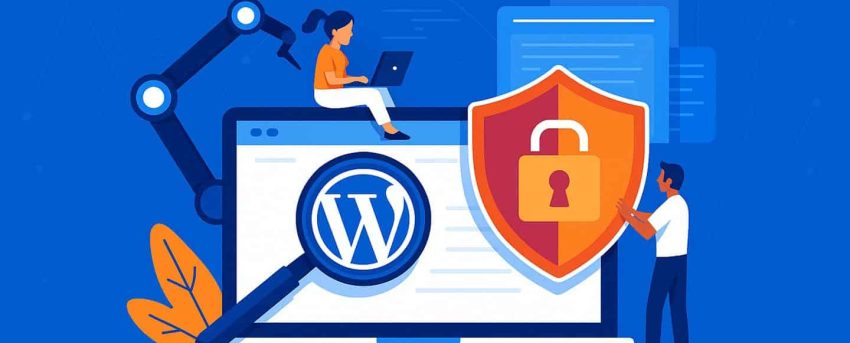
Every WordPress website is a potential target, regardless of your business size. With thousands of new attacks launched daily, WordPress site security is no longer optional—it’s mission-critical. At WP Support Lab, we specialize in building WordPress sites that are fast, functional, and fortified against threats. Below, you’ll find our comprehensive 19-step checklist to secure your site from the most common and dangerous cyber threats, ensuring your online presence remains safe and reliable in 2025. By following these steps, you can significantly reduce the risk of hacks and protect your business from costly disruptions.
Why WordPress Site Security Matters
A hacked site can lead to severe consequences:
- Loss of sensitive customer data, risking legal and financial repercussions
- Google blacklisting, which can tank your site’s visibility
- SEO penalties that undo years of optimization efforts
- Reputational damage, eroding customer trust
- Costly cleanup efforts, both in time and resources
And often, you won’t know your site’s been compromised until it’s too late.
💡 The best defense is a proactive strategy. These 19 actions provide peace of mind against evolving threats, helping you stay one step ahead of potential attackers.
19-Step Checklist for WordPress Site Security
1. Keep Software Updated
Outdated WordPress core, themes, and plugins are the top reason sites get hacked. Always install the latest releases to patch vulnerabilities.
2. Use Strong Admin Credentials
Avoid using “admin” as a username. Create a unique password with a mix of upper/lowercase letters, numbers, and symbols to enhance security.
3. Enable Two-Factor Authentication
Add two-factor authentication to your login screen using apps like Google Authenticator or Authy for an extra layer of protection.
4. Limit Login Attempts
Prevent brute-force attacks by restricting the number of login attempts before blocking users, reducing unauthorized access risks.
5. Rename Default Login URL
Change /wp-login.php or /wp-admin to a custom URL to add a layer of obscurity, making it harder for attackers to find your login page.
6. Use a Web Application Firewall
A web application firewall filters malicious traffic before it reaches your site. Tools like Sucuri or Cloudflare are highly effective at blocking threats.
7. Install a Security Plugin
Use reputable options like Wordfence, iThemes Security, or All In One WP Security for comprehensive threat detection and protection.
8. Secure wp-config.php and .htaccess
Restrict write access and block external access to these critical files via server rules or plugins to prevent unauthorized modifications.
9. Disable File Editing
Add define(‘DISALLOW_FILE_EDIT’, true); to wp-config.php to prevent attackers from editing files directly through the dashboard.
10. Set Proper File Permissions
Use 755 for directories and 644 for files to minimize vulnerabilities while ensuring your site functions correctly.
11. Enable HTTPS
Secure your site with an SSL certificate (e.g., free via Let’s Encrypt) to encrypt data and gain SEO benefits.
12. Schedule Malware Scans
Implement malware prevention strategies by running weekly or daily scans with plugins to catch infections early before they spread.
13. Backup Regularly
Automate full-site backups with tools like UpdraftPlus or BlogVault, and store them off-site for safekeeping.
14. Remove Unused Software
Delete inactive plugins and themes to reduce potential access points for hackers, keeping your site lean and secure.
15. Audit User Roles
Review user accounts monthly, removing old contributors or clients with lingering access to prevent unauthorized entry.
16. Choose Secure Hosting
Opt for secure WordPress hosting with strong isolation, active firewalls, and malware detection to avoid risks associated with cheap hosting.
17. Block Spam Bots
Use tools like Blackhole for Bad Bots or server-level firewalls to block known threats and spammers.
18. Protect Forms with reCAPTCHA
Apply Google reCAPTCHA to login, contact, and checkout forms to stop bot submissions effectively.
19. Monitor Activity Logs
Track file changes, logins, and updates with WP Activity Log to detect suspicious behavior early and respond promptly.
WP Support Lab: Your Security Partner
Security isn’t a one-time setup—it’s an ongoing process. Businesses trust WP Support Lab to handle everything from initial hardening to continuous monitoring and support.
🛡️ Our Maintenance Plans include all 19 steps (and more), ensuring your site stays protected behind the scenes. Talk to our team today!
Final Thoughts—Act Before a Breach
By the time you see damage, it’s often too late. With this 19-step WordPress site security strategy and the right support, you can stop threats before they start. Let’s safeguard your site confidently.