

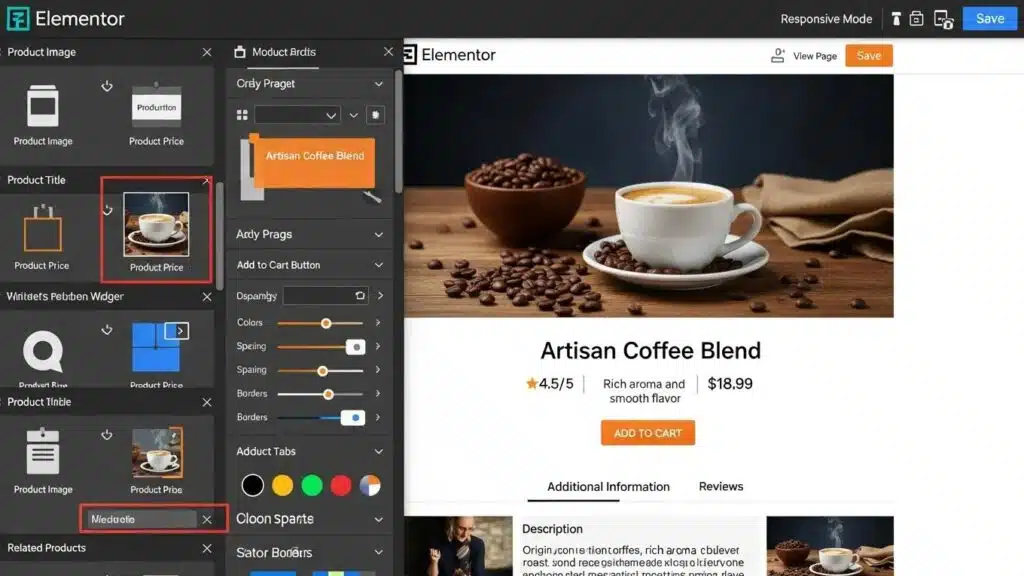
Creating an effective WooCommerce web design is essential for any online store aiming to enhance user experience and drive sales. Elementor, a popular page builder for WordPress, offers powerful tools that can significantly improve the design and functionality of WooCommerce sites. This article explores seven actionable tips that leverage Elementor’s capabilities to create stunning and efficient eCommerce websites. Many store owners face challenges integrating design elements that not only look good but also convert visitors into customers. By implementing these Elementor tips, store owners can develop a visually appealing and user-friendly WooCommerce site that meets business goals. The article covers how to integrate Elementor with WooCommerce, best practices for product page customization, and techniques for optimizing checkout processes.
Elementor serves as a powerful platform for web designers to craft custom WordPress themes, emphasizing user experience and interface design.
Elementor & WordPress: UX/UI Strategies for Custom Themes
The aim of this project is to offer a new, easier method to web designers and web design instructors for creating a custom-built WordPress theme using primarily Underscores, a starter theme made by Automattic, the creators of WordPress; and Elementor, a leading WordPress-based web creation platform. WordPress is a leading, free content management system (CMS) for building websites. Premised on user experience/user interface (UX/UI) applied research, this method can help web design professionals avoid using third-party WordPress themes.
How to Integrate Elementor Seamlessly with WooCommerce?
Integrating Elementor with WooCommerce allows customization of an online store’s appearance and functionality without requiring extensive coding knowledge. This integration utilizes Elementor’s drag-and-drop interface, simplifying the design process. The seamless connection between these two platforms enhances the overall user experience, making it easier for customers to navigate and purchase products. To get started, ensure both Elementor and WooCommerce are installed on the WordPress site, and consider using Elementor Pro for advanced features.
What are the essential Elementor WooCommerce widgets to use?
When designing a WooCommerce site with Elementor, several essential widgets can enhance the store’s functionality:
- Product Archive: Displays a grid of products, allowing customers to browse easily.
- Product Title: Highlights the product name, making it stand out on the page.
- Add to Cart Button: Facilitates quick purchases directly from product listings.
- Product Images: Showcases high-quality images to attract customers.
- Product Price: Clearly displays pricing information, which is crucial for conversion.
These widgets are designed to work together, providing a cohesive shopping experience that encourages users to explore and purchase products.
How does Elementor enhance WooCommerce product page design?
Elementor significantly enhances WooCommerce product page design by offering customizable templates and advanced styling options. With Elementor, unique layouts can be created that reflect a brand’s identity while ensuring product information is presented clearly. The ability to use dynamic content allows for personalized product displays, which can increase customer engagement. Additionally, Elementor’s responsive design capabilities ensure that product pages look great on all devices, from desktops to smartphones.
What Are the Best Practices for WooCommerce Product Page Customization with Elementor?
Customizing product pages effectively can lead to higher conversion rates. Here are some best practices to consider:
- Mobile-First Design: Prioritize mobile optimization to cater to the growing number of mobile shoppers.
- Streamlined Checkout Process: Simplify the checkout process to reduce cart abandonment rates.
- Use of Dynamic Tags: Implement dynamic tags to automatically pull in product information, ensuring consistency and saving time.
By following these practices, product pages can be created that not only look appealing but also drive sales.
How to use dynamic content for personalized product displays?
Dynamic content in Elementor allows creation of personalized experiences for customers. By utilizing features like custom fields and dynamic tags, tailored product information can be displayed based on user behavior or preferences. For example, showing related products or personalized recommendations can enhance user engagement and increase the likelihood of additional purchases. This approach improves the shopping experience and fosters customer loyalty.
Which Elementor widgets optimize product page layout and user experience?
Several Elementor widgets are particularly effective in optimizing product page layout and enhancing user experience:
- Tabs Widget: Organizes product information into tabs, making it easier for customers to find details.
- Accordion Widget: Allows for expandable sections, which can help keep the page clean and organized.
- Testimonials Widget: Displays customer reviews, building trust and credibility.
These widgets contribute to a more intuitive layout, guiding users through the purchasing process seamlessly.
How Can You Design a Custom WooCommerce Checkout Page Using Elementor?
Designing a custom checkout page with Elementor can significantly improve the user experience. A well-designed checkout page should be simple and straightforward, minimizing distractions. Here are some tips for creating an effective checkout page:
- Single-Page Checkout Design: Keep the checkout process on one page to streamline the experience.
- Minimizing Fields: Reduce the number of required fields to make the process quicker and easier for customers.
- Clear Progress Indicators: Use visual cues to show customers where they are in the checkout process.
By focusing on these elements, a checkout page can be created that encourages completion and reduces cart abandonment.
What Elementor features improve checkout conversion rates?
Several Elementor features can enhance checkout conversion rates:
- Trust Signals: Incorporate security badges and customer testimonials to build trust.
- Streamlined Checkout Process: Use Elementor’s design capabilities to create a clean and efficient checkout layout.
- Dynamic Content Features: Display personalized messages or offers during checkout to encourage completion.
These features work together to create a more reassuring and efficient checkout experience for customers.
Further emphasizing Elementor’s impact, research highlights its role in optimizing operations and boosting sales through effective WooCommerce integration.
Elementor & WooCommerce: Boost Sales & Conversions
WooCommerce optimizes operations and increases sales, boosting conversions, and continually optimizing the customer experience. In addition, Elementor offers both a free and a pro (paid) version.
Developing Modern E-commerce: WooCommerce for Digital Products, AH Sutopo, 2024
How to implement WooCommerce custom checkout design tips effectively?
To implement custom checkout design tips effectively, consider the following strategies:
- Streamlining the Checkout Experience: Focus on reducing the number of steps required to complete a purchase.
- Visible Order Summary: Ensure that customers can easily see their order details throughout the checkout process.
- Testing and Optimization: Regularly test the checkout process to identify areas for improvement and optimize accordingly.
By applying these strategies, the overall checkout experience can be enhanced, leading to higher conversion rates.
What Are Key Elementor Tips for Responsive and Speed-Optimized WooCommerce Design?
Creating a responsive and speed-optimized WooCommerce design is crucial for maintaining user engagement. Here are some key tips:
- Mobile-First Design: Always design with mobile users in mind, ensuring that the site is fully responsive.
- Visual Performance Optimization: Optimize images and other media to improve loading times.
- Testing Across Devices: Regularly test the site on various devices to ensure a consistent experience.
These tips help create a WooCommerce site that performs well across all platforms, enhancing user satisfaction.
How to ensure mobile-first WooCommerce design with Elementor?
To ensure a mobile-first WooCommerce design with Elementor, follow these strategies:
- Designing in Mobile View: Use Elementor’s mobile editing features to create layouts specifically for mobile devices.
- Optimizing Product Grid Layouts: Ensure that product grids are easy to navigate on smaller screens.
- Building Trust Above the Fold: Place key trust signals, such as reviews and security badges, prominently on the mobile layout.
By focusing on these elements, a mobile experience can be created that meets the needs of today’s shoppers.
This approach aligns with the broader understanding that Elementor facilitates personalized, mobile-first designs, crucial for modern web experiences.
Elementor for Personalized Mobile-First WordPress Design
The practical work was implemented by WordPress Elementor, enabling customers to receive more personalized products and services, seen and how the screen looks on mobile phone or tablet.
Improvement of the visual appearance of Henriikka Kivelä’s webpage, 2022
Which techniques improve WooCommerce site speed and performance?
Improving site speed and performance is essential for retaining customers. Here are some effective techniques:
- Reducing File Sizes: Compress images and scripts to decrease loading times.
- Minimizing Unnecessary Features: Remove plugins and features that slow down the site.
- Using Performance Settings: Leverage caching and other performance settings to enhance speed.
Implementing these techniques leads to a faster, more efficient WooCommerce site that keeps customers engaged.
Different Elementor widgets and features contribute to enhancing WooCommerce web design, making it easier for store owners to create effective online shopping experiences.
To further enhance website visibility, consider implementing effective search engine optimization strategies.
Many store owners face challenges integrating design elements that not only look good but also convert visitors into customers. By implementing these Elementor tips, a visually appealing and user-friendly WooCommerce site can be created that meets business goals. This article covers how to integrate Elementor with WooCommerce, best practices for product page customization, and techniques for optimizing checkout processes.
For those needing assistance with their WordPress site, WordPress support services provide expert help.
For rapid website development, consider using an AI-assisted web design team to streamline the process.
To ensure a WordPress site is running smoothly, consider a WordPress audit to identify and fix any issues.