


Automating workflows in WordPress significantly enhances productivity and streamlines processes for website owners and developers alike. With the right plugins, tasks that once consumed valuable time can be executed with minimal effort, allowing users to focus on more strategic activities. This article explores five powerful methods for automating WordPress workflows using plugins, providing insights into their functionalities and benefits. As many users struggle with repetitive tasks, these automation solutions offer a way to improve efficiency and reduce errors. The best automation plugins available in 2023, effective task automation strategies, the benefits of workflow management automation, and how these plugins can enhance both efficiency and SEO are examined in detail.
What Are the Best WordPress Automation Plugins in 2023?
In 2023, several WordPress automation plugins stand out for their capabilities and user satisfaction. These plugins not only simplify tasks but also integrate seamlessly with various platforms, enhancing overall functionality.
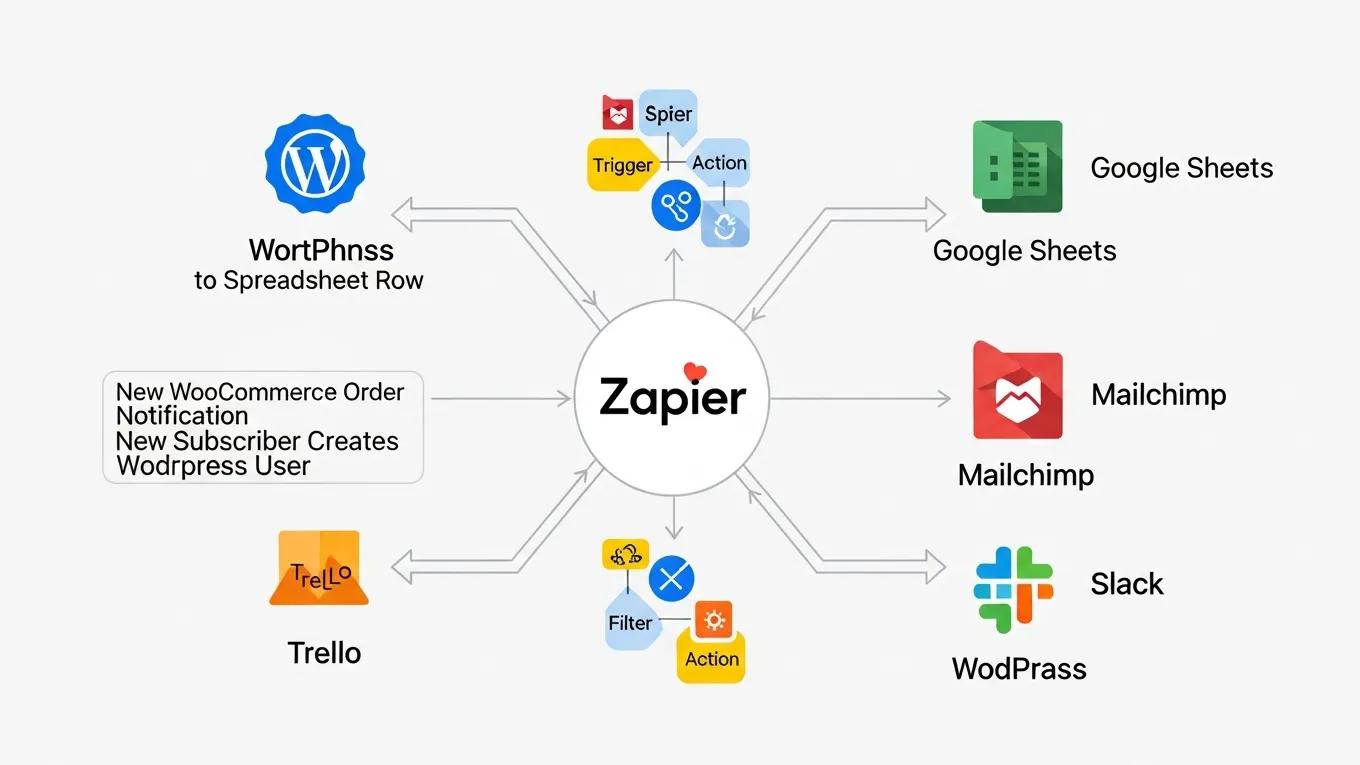
- Zapier: This plugin connects WordPress with over 6,000 apps, automating tasks like posting to social media or managing email lists.
- WPForms: A powerful form builder that automates data collection and integrates with email marketing services.
- Uncanny Automator: This plugin allows users to create automated workflows between different plugins and services, enhancing user engagement.
- WP Scheduled Posts: It automates the scheduling of posts, ensuring consistent content delivery without manual intervention.
- WooCommerce Automation: This suite of tools automates various eCommerce tasks, from inventory management to customer notifications.
These plugins are designed to enhance user experience and operational efficiency, making them essential tools for any WordPress site.
What Features Make These Automation Plugins Stand Out?
The standout features of these automation plugins include their ease of use, integration capabilities, and the ability to customize workflows according to specific needs. For instance, Zapier’s extensive app integration allows users to automate tasks across different platforms, while WPForms offers customizable form templates that streamline data collection. Uncanny Automator’s ability to connect various plugins without coding makes it accessible for users of all skill levels. Additionally, WooCommerce Automation provides tailored solutions for online stores, automating critical processes that enhance customer satisfaction.
How Do These Plugins Support WooCommerce and Content Scheduling?
WooCommerce automation plugins are particularly beneficial for eCommerce sites, as they streamline processes such as order management, inventory tracking, and customer communication. For example, automated emails can be sent to customers upon order completion, enhancing the shopping experience. Similarly, content scheduling plugins like WP Scheduled Posts allow users to plan and automate their content calendar, ensuring that posts are published at optimal times without manual oversight. This integration of automation in both eCommerce and content management significantly boosts operational efficiency.
How Can WordPress Tasks Be Automated Effectively?
To effectively automate tasks in WordPress, it is important to first identify repetitive processes that consume time and resources. Common tasks suitable for automation include:
- Content Scheduling: Automating the publication of posts ensures a consistent flow of content.
- Email Marketing: Integrating forms with email marketing services can automate subscriber management and communication.
- Social Media Posting: Automatically sharing new posts on social media platforms can enhance visibility and engagement.
- Backup Management: Automating backups ensures that website data is regularly saved without manual intervention.
By leveraging the right plugins, these automation strategies can be implemented to enhance productivity and reduce the likelihood of errors.
What Are the Benefits of WordPress Workflow Management Automation?
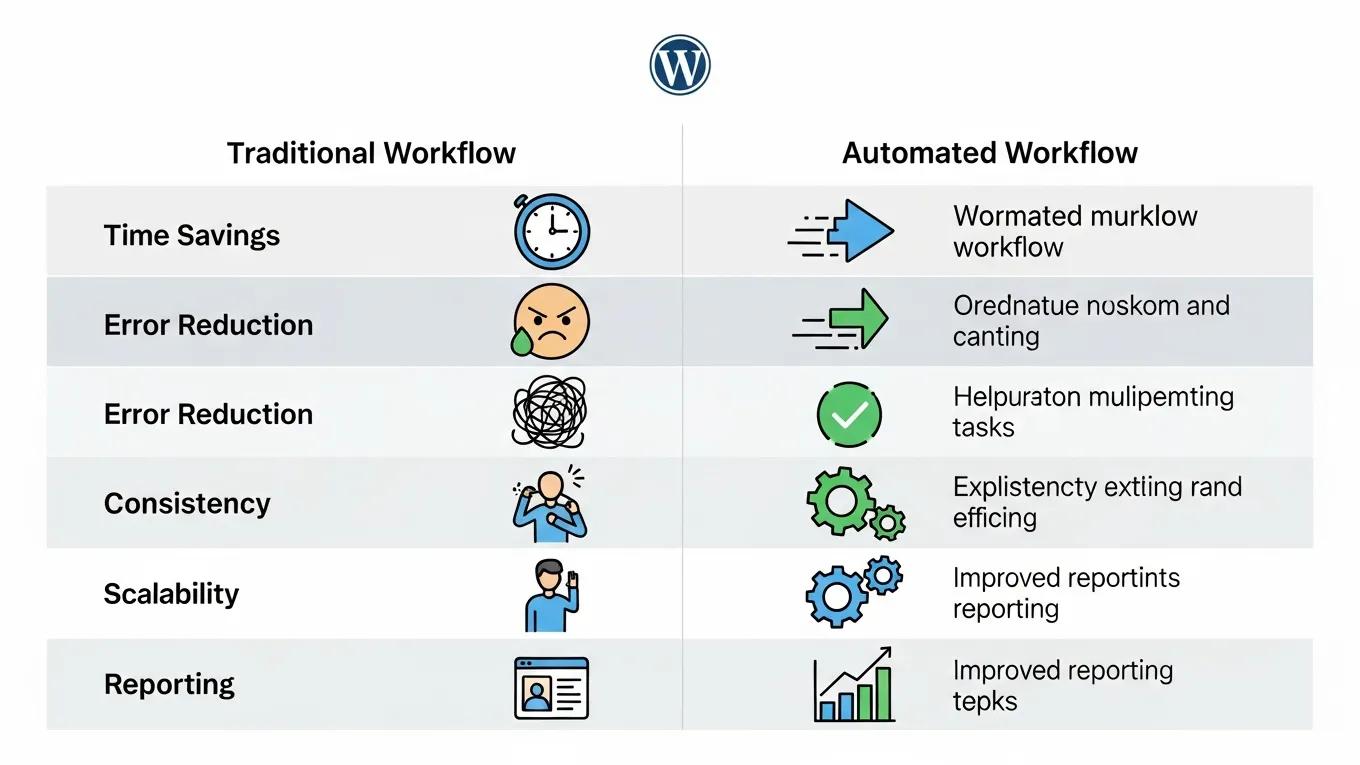
The benefits of automating WordPress workflows are numerous. Primarily, automation leads to significant time savings, allowing users to focus on more strategic tasks rather than repetitive ones. Additionally, automation reduces the risk of human error, ensuring that processes are executed consistently and accurately.
Moreover, workflow management automation can enhance collaboration among team members by streamlining communication and task assignments. This improved efficiency not only boosts productivity but also contributes to a more organized and effective work environment.
How Do Automation Plugins Improve Efficiency and SEO?
Automation plugins play a crucial role in improving both operational efficiency and SEO performance. By automating tasks such as content scheduling and social media posting, users can maintain a consistent online presence, which is vital for SEO. Regularly updated content signals to search engines that a site is active, potentially improving its ranking.
Furthermore, automation can enhance user engagement through timely responses and personalized communication, which are essential for retaining visitors and converting them into customers. As a result, the integration of automation plugins not only streamlines workflows but also contributes to better SEO outcomes.
What Case Studies Demonstrate Measurable Workflow Improvements?
Several case studies illustrate the measurable improvements that automation can bring to WordPress workflows. For instance, a small eCommerce business reported a 30% increase in sales after implementing WooCommerce automation tools that streamlined order processing and customer communication. Another case study highlighted a content-driven site that improved its publishing frequency by 50% through the use of content scheduling plugins, leading to increased traffic and engagement.
These examples demonstrate the tangible benefits of adopting automation strategies, showcasing how they can lead to significant operational enhancements and business growth.
How Is WordPress Integrated with Third-Party Automation Tools?
Integrating WordPress with third-party automation tools significantly enhances its functionality. Tools like Zapier allow users to create automated workflows that connect WordPress with various applications, streamlining processes across platforms.
What Are the Best Practices for Connecting Zapier and Other Tools?
When connecting Zapier with WordPress, it is essential to follow best practices to ensure seamless integration:
- Define Clear Objectives: Identify specific tasks to automate to streamline the integration process.
- Test Workflows: Before full implementation, test automated workflows to ensure they function as intended.
- Monitor Performance: Regularly review the performance of automated tasks to identify areas for improvement.
By adhering to these practices, users can maximize the benefits of integrating WordPress with third-party automation tools.
How Does Integration Enhance Plugin Automation Capabilities?
Integrating WordPress with other tools enhances the capabilities of automation plugins by expanding their functionality. For example, connecting WooCommerce with email marketing platforms allows for automated customer follow-ups and targeted marketing campaigns. This synergy not only improves operational efficiency but also enhances the overall user experience, making it easier for businesses to engage with their audience effectively.
To further enhance a WordPress site, exploring options for WordPress development is recommended, ensuring the site is optimized for performance and user experience.
Many users also seek assistance with their WordPress sites. For reliable WordPress support, reaching out to experts who provide guidance and troubleshooting is advisable.
For those looking to build a website quickly and efficiently, using an AI-assisted web design team can help create a professional-looking site in a fraction of the time.
Advanced WordPress Automation with WP-Cron and Custom Hooks
WP-Cron is the backbone of WordPress’s internal scheduling system, enabling automated execution of tasks at specified intervals without relying on server-level cron jobs. Its architecture revolves around event scheduling, custom intervals, and action hooks that trigger specific functions when scheduled events occur. This system allows WordPress to perform routine maintenance, publish scheduled posts, and execute custom workflows seamlessly.
Developers can leverage WordPress action and filter hooks to create custom automated workflows tailored to unique business needs. By hooking into specific events or filters, it is possible to trigger complex sequences such as sending notifications, updating databases, or integrating with external services automatically. This flexibility empowers site owners to automate virtually any repetitive task within the WordPress environment.
Integration with external automation platforms like Zapier and Make (formerly Integromat) further extends WordPress’s automation capabilities. These platforms connect WordPress to thousands of third-party applications, enabling cross-platform workflows that synchronize data, trigger actions, and streamline business processes beyond the WordPress ecosystem.
At WP Support Lab, custom WordPress automation solutions are designed to eliminate repetitive manual tasks and reduce operational overhead by 60–80%. By combining WP-Cron scheduling, custom hooks, and third-party integrations, WP Support Lab delivers tailored automation strategies that enhance efficiency, accuracy, and scalability for businesses of all sizes.
Monitoring and Maintaining WordPress Automation Systems
Effective automation requires ongoing monitoring and maintenance to ensure workflows operate reliably and efficiently. Auditing existing automation workflows is essential to identify conflicts, redundancies, or performance bottlenecks that could degrade site functionality. This process involves reviewing scheduled tasks, plugin interactions, and server resource usage to optimize automation performance.
Logging automation events is a critical practice for debugging and tracking workflow execution. Detailed logs provide insights into task success, failures, and execution times, enabling developers to pinpoint issues quickly and maintain smooth operations.
Handling automation failures gracefully is vital to prevent disruptions. Implementing retry logic ensures that transient errors do not cause permanent task failures, while admin notifications alert site managers to persistent problems requiring manual intervention. These strategies maintain workflow continuity and minimize downtime.
WP Support Lab offers comprehensive automation maintenance services that guarantee client WordPress workflows continue running reliably as plugins and WordPress core are updated. This proactive approach includes regular audits, performance tuning, and timely updates to automation configurations, ensuring sustained operational excellence and peace of mind.
WP Support Lab WordPress Workflow Automation Services
WP Support Lab specializes in designing and implementing custom WordPress workflow automation solutions that empower businesses to eliminate manual processes and scale operations efficiently. From WP-Cron scheduling and plugin-based automation to API integrations and custom hook development, WP Support Lab delivers technically precise, brand-forward automation strategies tailored to each client’s unique requirements.
By leveraging deep expertise in WordPress architecture and automation best practices, WP Support Lab helps organizations streamline workflows, reduce operational overhead, and enhance overall productivity. Partnering with WP Support Lab ensures that WordPress automation is not only effective but also sustainable, adaptable, and aligned with business goals.